💼 Internship at Flashgroup XR
Flashgroup XR develops immersive XR training systems for emergency services, including firefighters, police, security personnel and first-aid responders. Its portable, plug-and-play solutions combine multiplayer VR simulations, realistic training scenarios and replicas of professional equipment, allowing instructors to conduct and review practical emergency-response training almost anywhere.
I worked at Flashgroup XR as a Programming Intern / Unity Tools Developer.
My main responsibility was researching and developing internal tools that improved the team’s production workflow.
My primary project was a custom Unity collider editor that helped making colliders in Unity for a given game object.
👤 Zhangir Before the Project
Before this project, I was already comfortable with Unity, C#, editor scripting, VR development, and building technical prototypes. I could research algorithms, implement systems, and quickly turn ideas into working tools.
However, I was less experienced in designing tools for other people’s workflows. My instinct was to approach the problem from a programmer’s perspective: automate as much as possible, expose useful parameters, and give users technical control. I assumed that if the system was powerful and technically correct, it would naturally be useful.
What I was weaker in was understanding the user experience behind internal tools. I did not yet fully appreciate that artists and programmers think differently, and that what feels logical to me can feel confusing or intimidating to someone else. I entered the project thinking mainly about collider generation, but I still had to learn how to design a tool around the way people actually work.
🔨 My Contributions
📦 The Collider Editor Tool
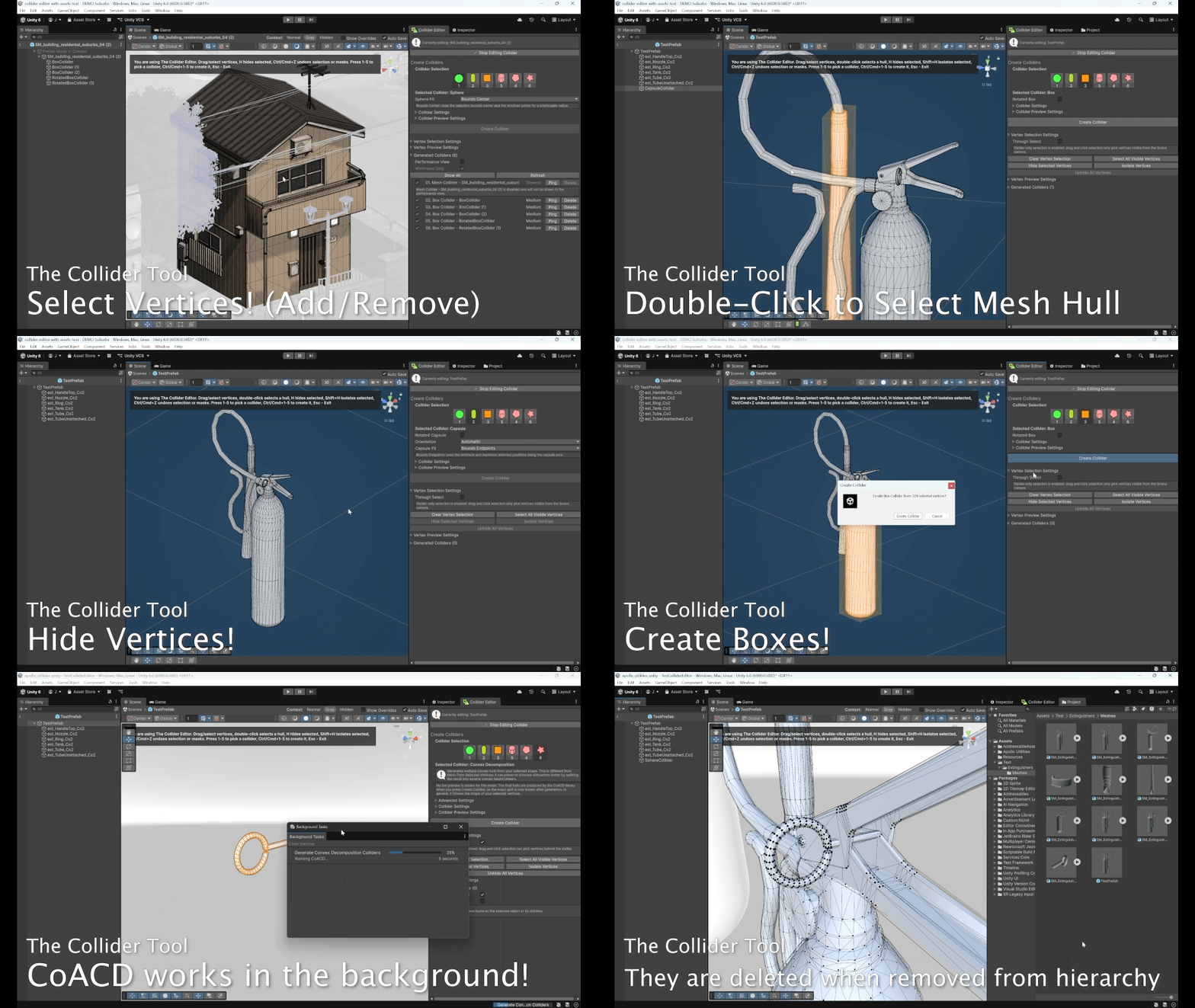
The Collider Editor is a custom Unity editor tool that lets artists and developers create accurate physics colliders directly from a mesh’s vertices. Users can select parts of a model in the Scene View, preview the collider shape, and generate colliders such as spheres, capsules, boxes, cylinders, convex hulls, or convex-decomposition collider sets.
My goal was to help create colliders as easy as possible.
This tool was made for Flashgroup’s 3D artists and programmers.
Before, an artist/programmer had to either leave Unity to edit meshes in Blender or rely on Unity’s limited native collider tools, which is slow, repetitive, and error-prone.
Now, they can create, preview, and generate colliders directly inside Unity using the mesh’s vertices, making the process faster, more accurate, and easier to manage.
🖥️ Challenge 1: Simple and Clear User Interface & User Experience
❓ What was the Problem?
One frequent problem I encountered while developing the collider editor was that what I considered “logical” as a programmer was not always logical or intuitive to the actual users of the tool.
The tool was mainly meant to be used by artists, and sometimes programmers, so the interface could not only make sense from a technical point of view. It had to match the way they already worked, thought, and understood tools. My goal was not just to make the tool functional, but to make it easy to learn and fast to use, so that artists could apply their existing skills without needing to learn a completely new workflow.
This became especially clear when I received feedback that the first version of the tool felt “scary” because it had too many parameters and made users anxious to use it.
🧩 Why Was it Hard? What Struggles Did I Face?
The hardest part was understanding the difference between what users said they needed and what they actually needed while using the tool.
For example, the original assignment was focused on automatically generating colliders. From a programmer’s perspective, this made sense: automation should save time. However, after testing the tool with artists, I realized that automatic generation was not always the best solution. Artists could often create colliders manually in around one or two minutes, so if my generator required several attempts, confusing settings, or long processing times, it was no longer actually saving time.
Another struggle was that users did not always explain the core problem directly. They might comment on a button, a setting, or a specific missing feature, but the deeper issue was often about workflow, clarity, or immediate visual feedback. For example, artists needed to immediately see generated colliders, understand what settings did visually, and avoid being overwhelmed by technical labels such as “operator settings,” “CPDCD,” or “CoACD.”
This forced me to stop designing the tool only from my own perspective and instead observe how users behaved when they were actually using it.
💡 Solution. How Did I Approach the Problem?
To solve this, I started testing the tool frequently with artists and programmers. During these sessions, I wrote down both what they said out loud and what I personally observed while they used the tool.
This was important because spoken feedback and observed behavior were not always the same thing. A user might say that a setting was fine, but then hesitate before using it, change values randomly to see what happened, or get stuck because the tool gave no immediate visual response. Those observations helped me understand what needed to change in the user experience.
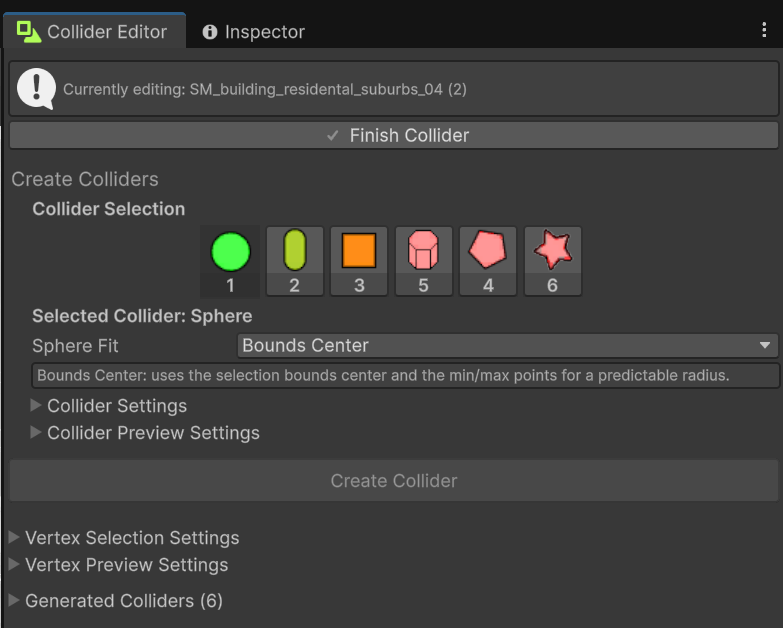
Based on the feedback, I simplified the interface and changed the focus of the tool from “automatic collider generator”. I redesigned the tool as a collider editor:
- manual collider creation for cases where artists could work faster by hand;
- convex mesh generation for more complex shapes;
- better naming so users did not need to understand research terms before using the tool;
- more visual feedback so users could immediately understand what happened.
One important design decision was to move away from exposing too many technical settings by default. Instead, I focused on making the common workflow simple first, while still keeping advanced settings available when needed.
✅ Problem Solved
The result was a much clearer and easier-to-use collider editor.
After iterating on the tool and applying feedback, the workflow became much closer to what the artists and supervisors actually needed:
- Select an object,
- Select vertices or a part of the mesh,
- Choose a collider shape,
- Preview the result, and
- Finalize it.
The tool also allowed automatic generators to be applied to selected parts of a mesh instead of only the entire object, which made the workflow more flexible.
Eventually, after showing the tool to my supervisor and the director, they said the tool was useful and close to production-ready. The director even mentioned that it would have saved him a lot of time in the past.
This challenge taught me that good UX is not just about making a tool look clean. It is about reducing uncertainty, matching the user’s existing workflow, and making sure the tool solves the real problem instead of only the problem I assumed existed.
📉 Cost / Limitations / Tradeoffs
The main cost of this is that iteration with artists requires a lot of time.
Sometimes, the artists or my product manager might be too busy and might not have enough time for feedback sessions. I spent some time on usability, naming, presets, visual feedback, and workflow design instead of only improving the underlying algorithm. However, this was worth it because the tool became more useful for the people who actually had to use it.
🖱️ Challenge 2: Selection (Select Vertices from Scene, Through Select / Visible-Only Select, Select Hulls, Vertex Masking, Vertex Isolation)
❓ What was the Problem?
The Collider Editor needed a reliable way to let users select mesh vertices directly in the Unity Scene view and then use that selection to generate colliders. The selection workflow had to feel similar to a lightweight mesh-editing mode: clicking vertices, dragging a selection rectangle, adding or removing from the current selection, selecting all visible vertices, double-clicking to select a connected hull, and temporarily hiding or isolating parts of the mesh.
The main goal was to let the user work visually on the original model instead of manually entering points or creating colliders through trial and error.
🧩 Why Was it Hard? What Struggles Did I Face?
Unity does not provide a built-in “select mesh vertices in the Scene view” workflow for custom editor tools, so I had to build most of the interaction layer myself. The code has to claim Scene view input, distinguish clicks from drag selections, handle double-clicks, and respect modifier keys for add/remove behavior.
private void ApplySelectionDrag(
	Vector2 mousePosition,
	bool addToSelection,
	bool removeFromSelection,
	int clickCount)
{
	Rect selectionRect = GetSelectionRect();

	if(selectionRect.width < MIN_SELECTION_RECT_SIZE &&
		selectionRect.height < MIN_SELECTION_RECT_SIZE)
	{
		if(clickCount > 1)
		{
			SelectClosestVertexHull(mousePosition, addToSelection, removeFromSelection);
			return;
		}

		ToggleClosestVertex(mousePosition, addToSelection, removeFromSelection);
		return;
	}

	SelectVerticesInRect(selectionRect, addToSelection, removeFromSelection);
}
The difficult part was that the selection is happening in 2D screen space, but the data is 3D mesh data. A vertex may appear inside the drag rectangle but still be hidden behind the mesh. That meant selection needed two modes: Through Select, which selects front and back vertices, and Visible-Only Selection, which rejects vertices occluded from the Scene camera.
Performance was also a concern. Dense meshes can contain thousands of vertices, and visible-only selection can require ray checks. The code therefore first performs cheap screen-space checks, then only runs the more expensive visibility test on candidates that could actually be selected.
Vector2 screenPoint = HandleUtility.WorldToGUIPoint(vertices[i].WorldPosition);
if(!selectionRect.Contains(screenPoint))
{
	continue;
}

// Do not raycast vertices that are outside the drag rectangle.
// This keeps visible-only selection responsive on dense meshes.
if(!visibilityContext.IsVertexSelectable(vertices[i].WorldPosition))
{
	continue;
}
Another challenge was keeping selection stable across child meshes and repeated vertices. The tool stores selected vertices using a transform plus local position key instead of only storing a vertex index. This lets the same system work across multiple MeshFilter components while still identifying which object-space vertex was selected.
public readonly struct VertexKey : IEquatable<VertexKey>
{
	private readonly Transform TRANSFORM;
	private readonly Vector3 LOCAL_POSITION;

	public bool Equals(VertexKey other)
	{
		return TRANSFORM == other.TRANSFORM &&
			LOCAL_POSITION == other.LOCAL_POSITION;
	}
}
💡 Solution. How Did I Approach the Problem?
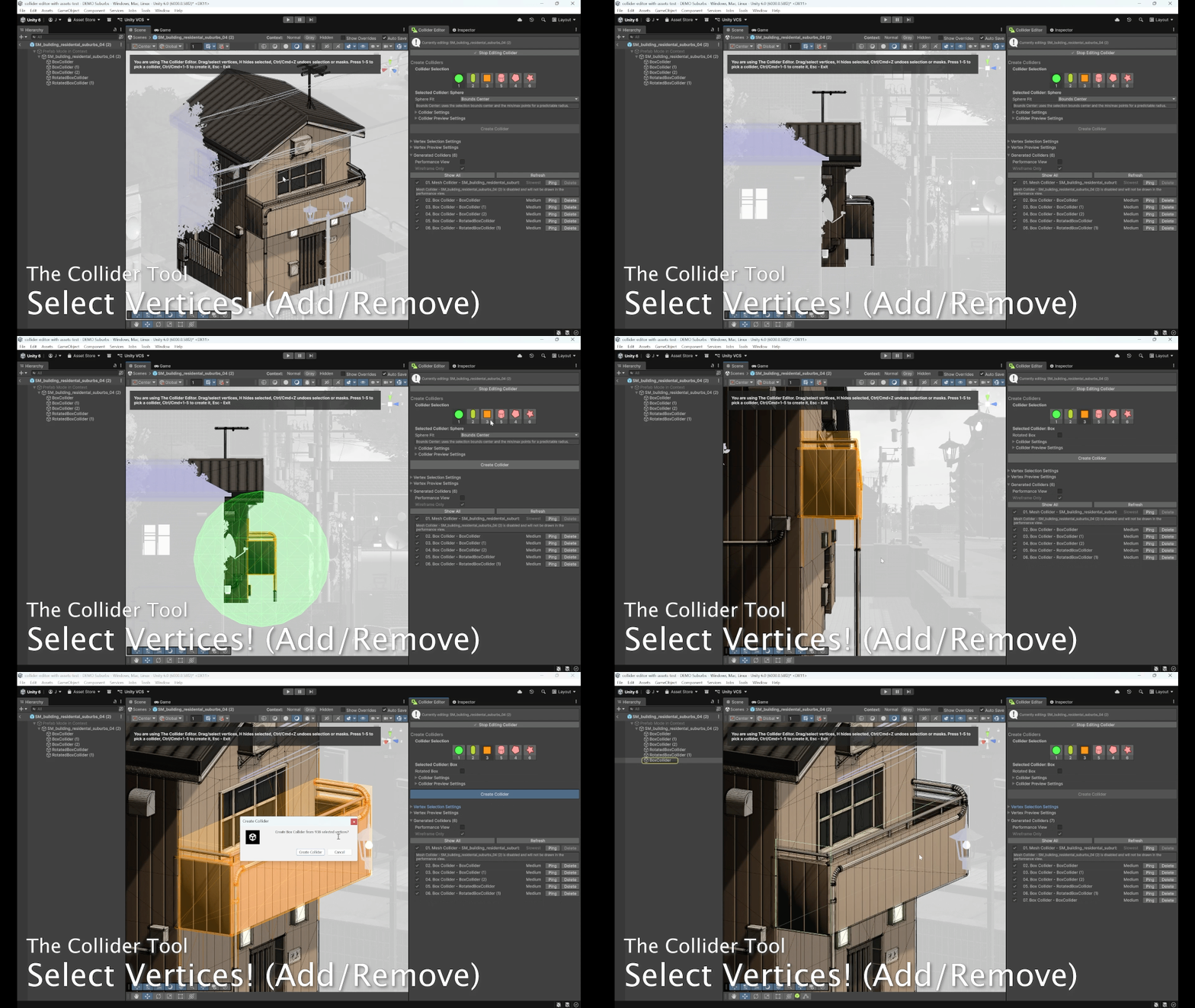
I implemented selection as a custom Scene view editing mode. The tool claims Scene view input, then converts every mesh vertex into GUI screen space using HandleUtility.WorldToGUIPoint. For single-click selection, it finds the closest selectable vertex within a click radius. For drag selection, it checks which vertices are inside the rectangle.
The same selection function supports replace, add, and remove behavior:
private void ToggleSelection(
	List<ColliderEditorState.SelectedVertex> selection,
	ColliderEditorState.SelectedVertex vertex,
	bool addToSelection,
	bool removeFromSelection)
{
	int existingIndex = FindSelectedIndex(selection, vertex);

	if(removeFromSelection)
	{
		if(existingIndex >= 0)
		{
			selection.RemoveAt(existingIndex);
		}

		return;
	}

	if(existingIndex >= 0)
	{
		if(!addToSelection)
		{
			selection.RemoveAt(existingIndex);
		}

		return;
	}

	selection.Add(vertex);
}
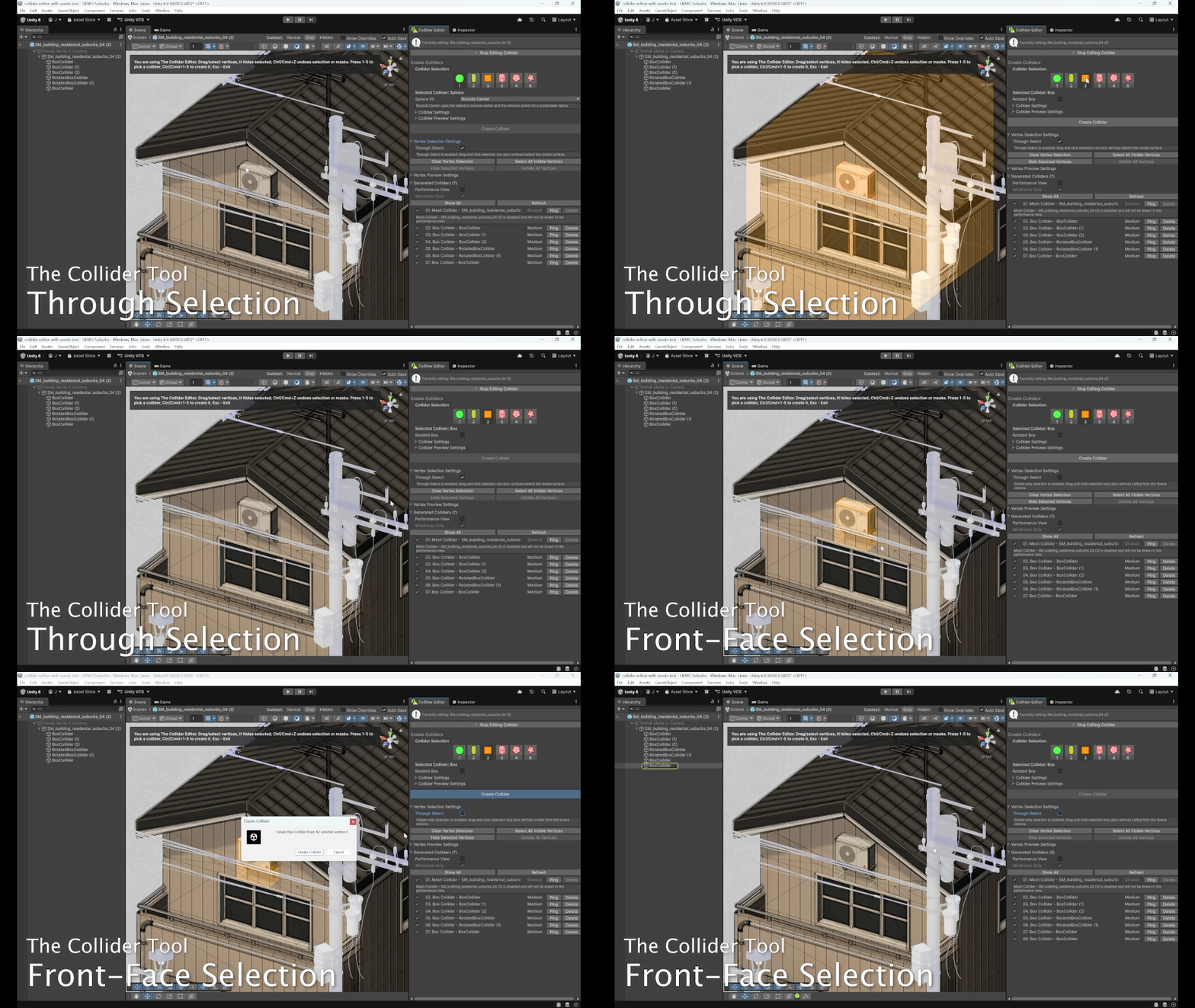
For visible-only selection, I added a small visibility context. When Through Select is enabled, every candidate vertex is selectable. When it is disabled, the tool casts from the Scene camera toward the vertex and checks whether another part of the mesh is hit first.
public bool IsVertexSelectable(Vector3 worldPosition)
{
	if(THROUGH_SELECT || SCENE_CAMERA == null)
	{
		return true;
	}

	return IsVertexVisibleFromSceneCamera(worldPosition);
}
return hit.distance > occlusionEpsilon &&
	hit.distance < vertexDistance - occlusionEpsilon;
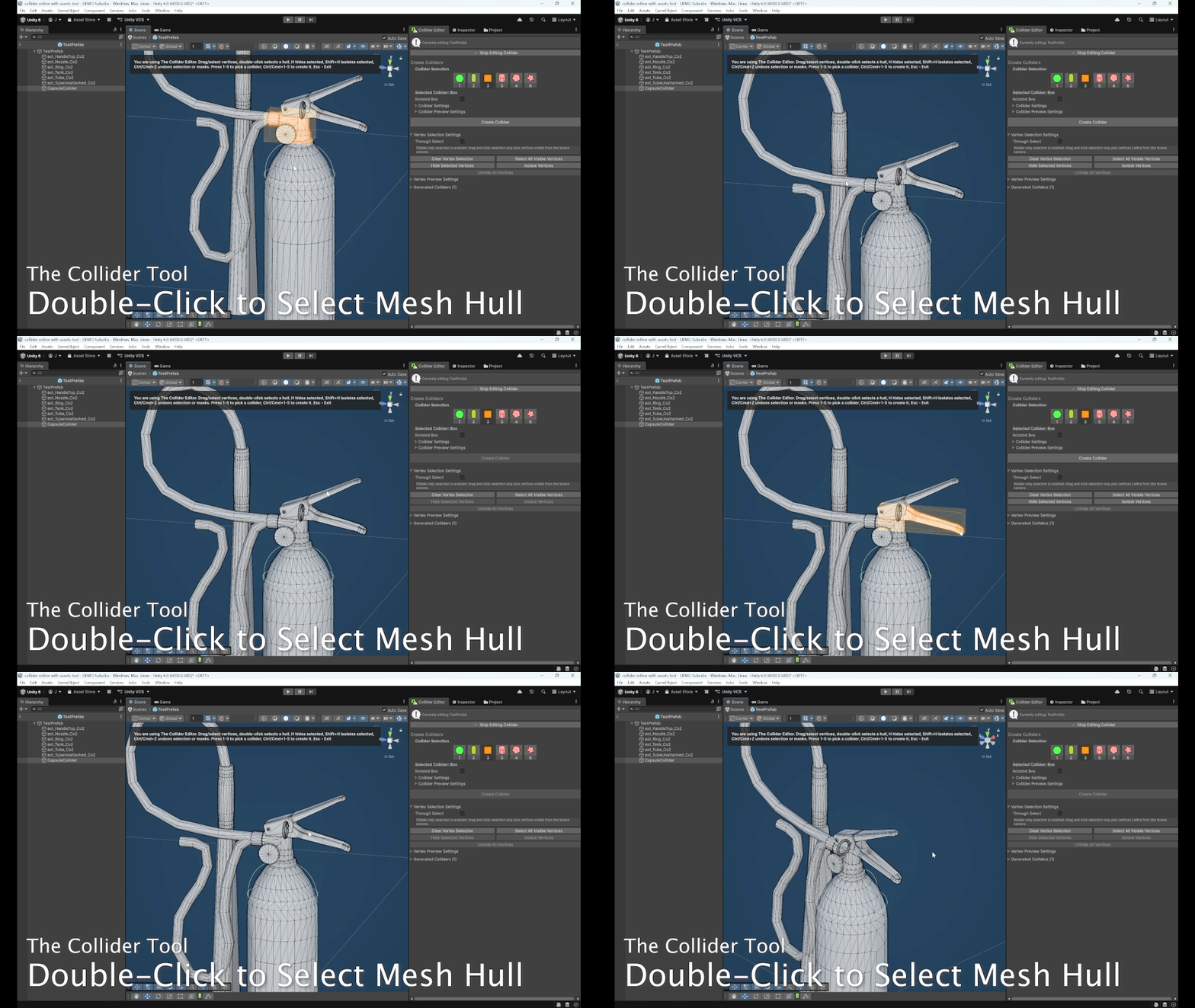
For connected hull selection, I treated the mesh as a graph. Triangle edges create vertex adjacency, and double-clicking a vertex runs a graph traversal to collect every vertex connected to that island. I also added shared-position edges so split vertices at the same local position can still be treated as connected.
private bool[] CreateConnectedVertexMask(Mesh mesh, int sourceVertexIndex)
{
	List<int>[] adjacency = BuildVertexAdjacency(mesh, vertexCount);
	Stack<int> verticesToVisit = new Stack<int>();

	connectedVertexMask[sourceVertexIndex] = true;
	verticesToVisit.Push(sourceVertexIndex);

	while(verticesToVisit.Count > 0)
	{
		int currentVertexIndex = verticesToVisit.Pop();
		List<int> neighbours = adjacency[currentVertexIndex];

		if(neighbours == null)
		{
			continue;
		}

		for(int i = 0; i < neighbours.Count; i++)
		{
			int neighbourIndex = neighbours[i];
			if(connectedVertexMask[neighbourIndex])
			{
				continue;
			}

			connectedVertexMask[neighbourIndex] = true;
			verticesToVisit.Push(neighbourIndex);
		}
	}

	return connectedVertexMask;
}
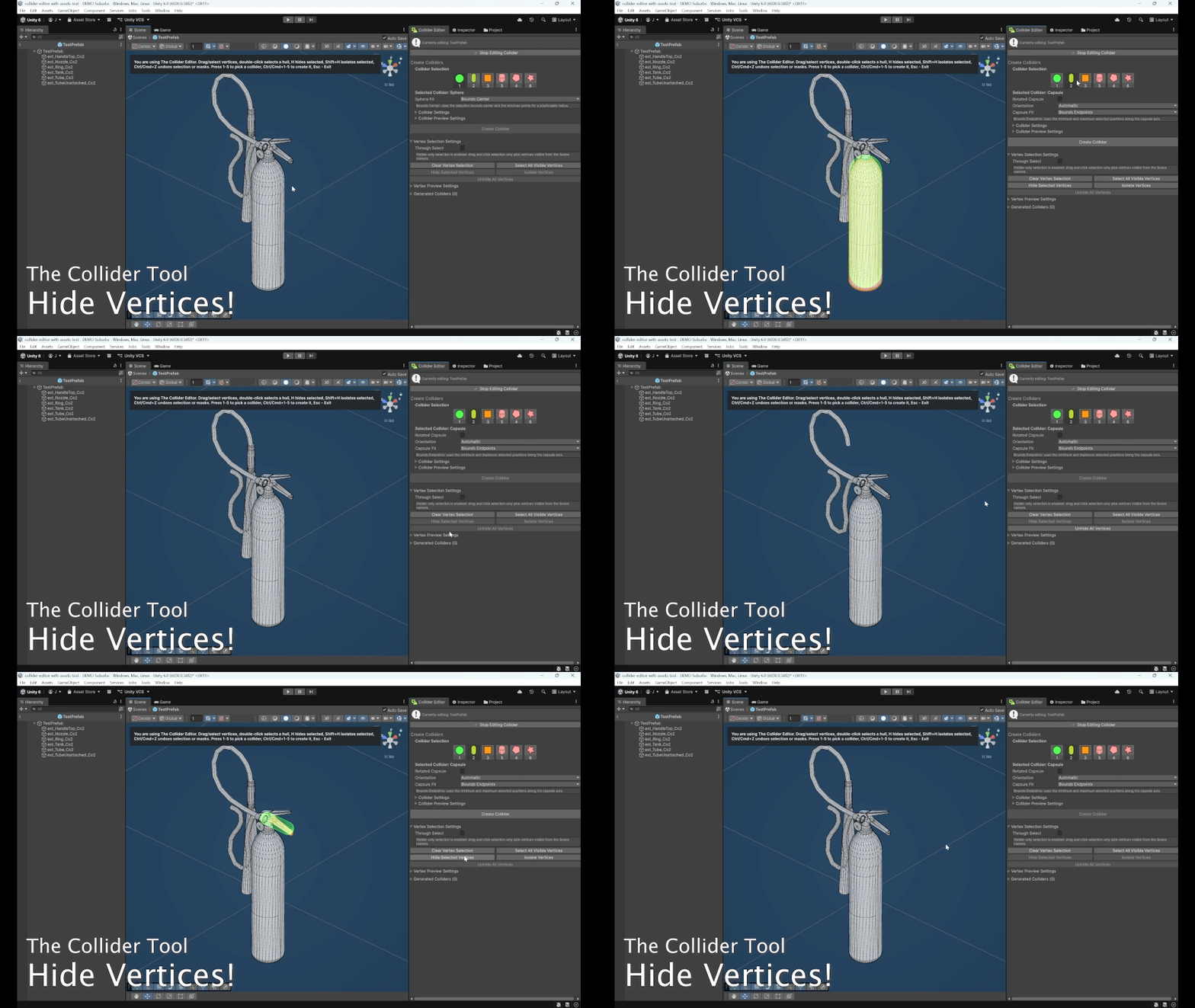
Vertex masking was implemented as editor-state operations, not destructive mesh edits. Hiding selected vertices moves them into a hidden list and clears the active selection.
public void HideSelectedVertices()
{
	HashSet<VertexKey> hiddenKeys = GetHiddenVertexKeys();

	for(int i = 0; i < selectedVertices.Count; i++)
	{
		if(!hiddenKeys.Contains(selectedVertices[i].Key))
		{
			hiddenVertices.Add(selectedVertices[i]);
			hiddenKeys.Add(selectedVertices[i].Key);
		}
	}

	selectedVertices.Clear();
}
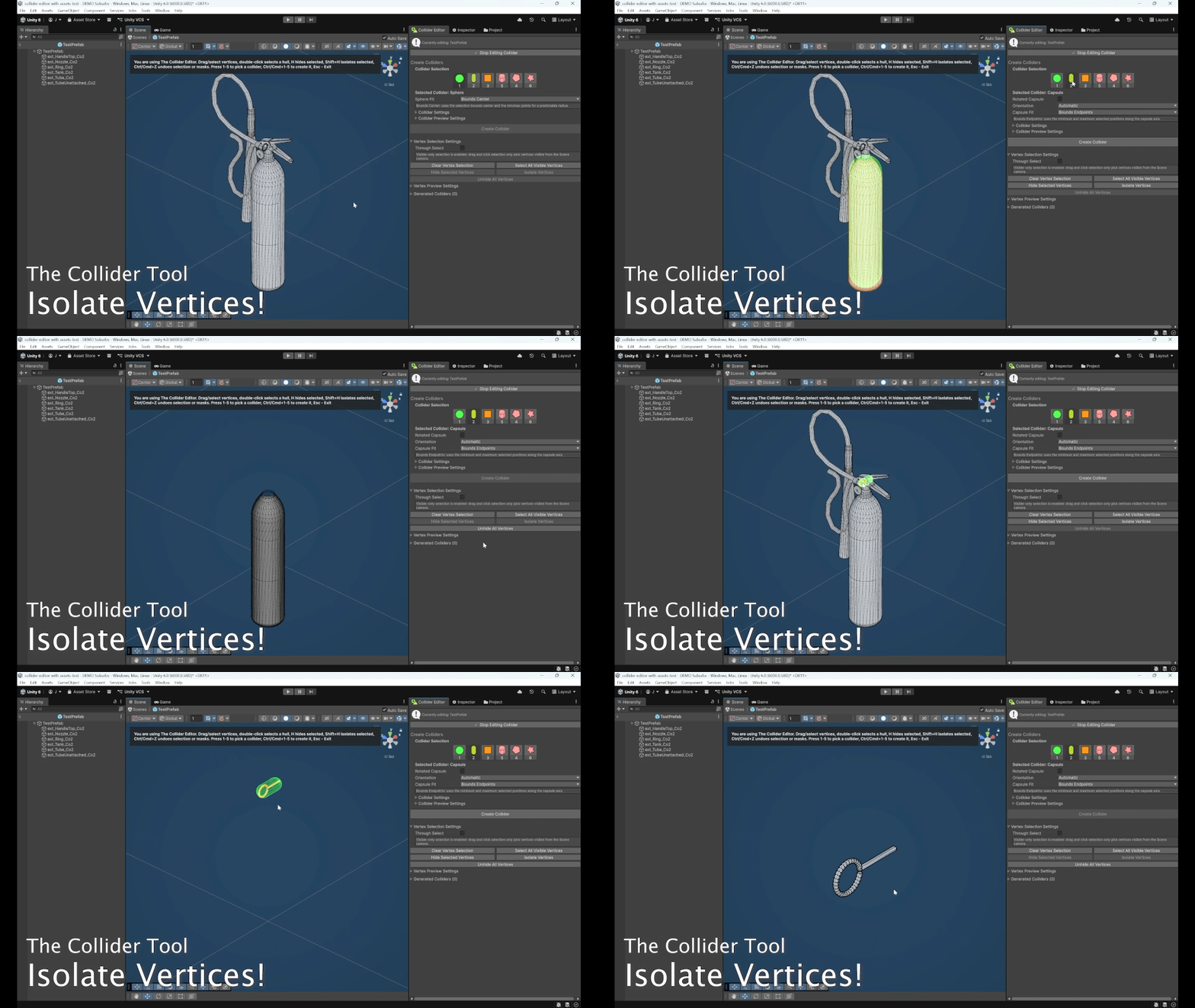
Vertex isolation was also implemented as editor-state operations, not destructive mesh edits. Isolation does the opposite: it hides every available vertex except the current selection.
public void IsolateSelectedVertices(List<SelectedVertex> availableVertices)
{
	HashSet<VertexKey> selectedKeys = GetSelectedVertexKeys();
	hiddenVertices.Clear();

	for(int i = 0; i < availableVertices.Count; i++)
	{
		SelectedVertex vertex = availableVertices[i];

		if(selectedKeys.Contains(vertex.Key) || hiddenKeys.Contains(vertex.Key))
		{
			continue;
		}

		hiddenVertices.Add(vertex);
		hiddenKeys.Add(vertex.Key);
	}

	RemoveHiddenVerticesFromSelection();
}
To make hidden vertices feel real in the Scene view, I also created a temporary filtered mesh preview. The original mesh asset is not modified. Instead, triangles that contain hidden vertices are removed from a preview mesh, and the original renderer is temporarily masked with forceRenderingOff.
✅ Problem Solved
The final result is a Scene view selection system that supports the core workflows needed for collider authoring:
Users can click individual vertices, drag-select groups of vertices, add to a selection with Shift, remove with Ctrl/Cmd, select all visible vertices, double-click a vertex to select its connected hull, switch between through-selection and visible-only selection, hide noisy vertices, and isolate the part of the mesh they want to work on.
This made collider creation much faster because the user can visually select only the relevant part of a model and immediately generate a collider from that region.
📉 Cost / Limitations / Tradeoffs
The biggest tradeoff is that selection is still largely linear over the mesh vertices. Click and rectangle selection iterate through the available vertices, and visible-only mode can perform ray/mesh checks on candidates. The code reduces the cost by doing cheap screen-space filtering first, but there is no spatial acceleration structure such as a BVH, octree, or cached screen-space lookup.
Connected hull selection rebuilds adjacency from mesh triangles when used. This is simple and reliable, but it can be expensive on very dense meshes, especially because it also checks shared local positions to connect split vertices.
The VertexKey uses exact Vector3 local-position equality. This works well for vertices coming directly from the same mesh data, but it is less tolerant of generated or slightly modified vertex positions where floating-point drift could make two visually identical positions compare as different.
Masking is intentionally non-destructive, which is safer for artists, but the preview removes whole triangles when any of their vertices are hidden. This is fast and clear, but it does not clip triangles or create partial polygon cuts, so hiding a vertex can create larger visual holes than a true mesh-editing application would.
Visible-only selection depends on Scene camera ray checks against the source mesh filters. If there is no valid Scene camera, the code falls back to allowing selection. This prevents the tool from breaking, but it means visible-only behavior is only as accurate as the available Scene view camera and ray/mesh intersection data.
👀 Challenge 3: Preview (Editable Mesh Overlay, Live Collider Preview, Performance-Colored Previews, Existing Collider Preview)
❓ What was the Problem?
The Collider Editor needed a strong Scene view preview system so users could understand what they were selecting and what collider would be created before committing to it.
The tool had to show multiple kinds of information at the same time: the editable source mesh overlay, visible vertices, selected vertices, selected faces, selected edges, the live collider preview, and already-generated colliders. On top of that, the preview needed to communicate expected physics cost by coloring collider types differently, so users could immediately see whether they were creating a cheap primitive collider or a more expensive mesh-based collider.
🧩 Why Was it Hard? What Struggles Did I Face?
The hard part was that Scene view previews repaint constantly. A simple implementation could easily become expensive if every repaint recalculated mesh topology, rebuilt vertex meshes, or drew every edge and point one by one with separate Handle calls.
The overlay code shows this problem clearly. Mesh data, edge lists, selected faces, point meshes, and world-space line data are all cached because drawing dense meshes in edit mode can create thousands of vertices, edges, and faces.
private sealed class MeshOverlayCache
{
	public MeshFilter meshFilter;
	public Mesh sourceMesh;
	public MeshOverlayData meshData;
	public int selectionSignature;
	public int hiddenSignature;
	public float vertexDrawSize;
	public float selectedVertexDrawSize;
	public Matrix4x4 cachedMatrix;
	public Matrix4x4 pointMeshMatrix;
	public EdgeKey[] visibleEdgePairs;
	public EdgeKey[] selectedEdgePairs;
	public Vector3[] wireframeWorldLines;
	public Vector3[] selectedEdgeWorldLines;
	public Mesh unselectedPointMesh;
	public Mesh selectedPointMesh;
	public Mesh selectedFaceMesh;
}
Another challenge was that the preview had to feel visually clear while sitting directly on top of the original mesh. Wireframes and selected faces can suffer from z-fighting, especially when drawn at the exact same surface depth as the mesh renderer. To solve that, the overlay positions are pushed slightly along the vertex normals.
private Vector3 GetOverlayPosition(
	Vector3 localPosition,
	Vector3 localNormal,
	float localOverlayDepthBias,
	Transform meshTransform)
{
	Vector3 worldPosition = meshTransform.TransformPoint(localPosition);
	Vector3 worldNormal = meshTransform.TransformDirection(localNormal);

	if(worldNormal.sqrMagnitude <= Mathf.Epsilon)
	{
		worldNormal = meshTransform.TransformDirection(Vector3.up);
	}

	worldNormal.Normalize();

	float largestScale = Mathf.Max(
		Mathf.Abs(meshTransform.lossyScale.x),
		Mathf.Max(Mathf.Abs(meshTransform.lossyScale.y), Mathf.Abs(meshTransform.lossyScale.z)));

	float bias = Mathf.Max(localOverlayDepthBias * largestScale, MINIMUM_VERTEX_WORLD_SIZE);
	return worldPosition + worldNormal * bias;
}
The live preview also had to support several collider types with different fitting logic. A box can be axis-aligned or rotated, a capsule needs radius, height, and axis information, a sphere needs a center and radius, and a convex hull needs a generated mesh. That made the preview system more than just “draw a shape”; it had to match the creation logic closely enough that users could trust what they saw.
💡 Solution. How Did I Approach the Problem?
I separated preview drawing into a dedicated ColliderPreview class. The editor window only decides when to draw, while ColliderPreview owns the Scene view rendering for mesh overlays, primitive previews, existing collider previews, and cached preview meshes.
public void Draw(ColliderEditorState state)
{
	DrawHiddenSourceMeshes(state);

	if(state == null || state.SelectedObject == null)
	{
		return;
	}

	if(!EnsurePreviewMaterial())
	{
		return;
	}

	if(state.DisplayVertices)
	{
		DrawVertices(state);
	}

	if(state.DrawExistingColliderPerformanceView)
	{
		DrawExistingColliderPerformanceView(state);
	}

	if(state.DrawPrimitivePreview)
	{
		DrawPrimitivePreview(state);
	}
}
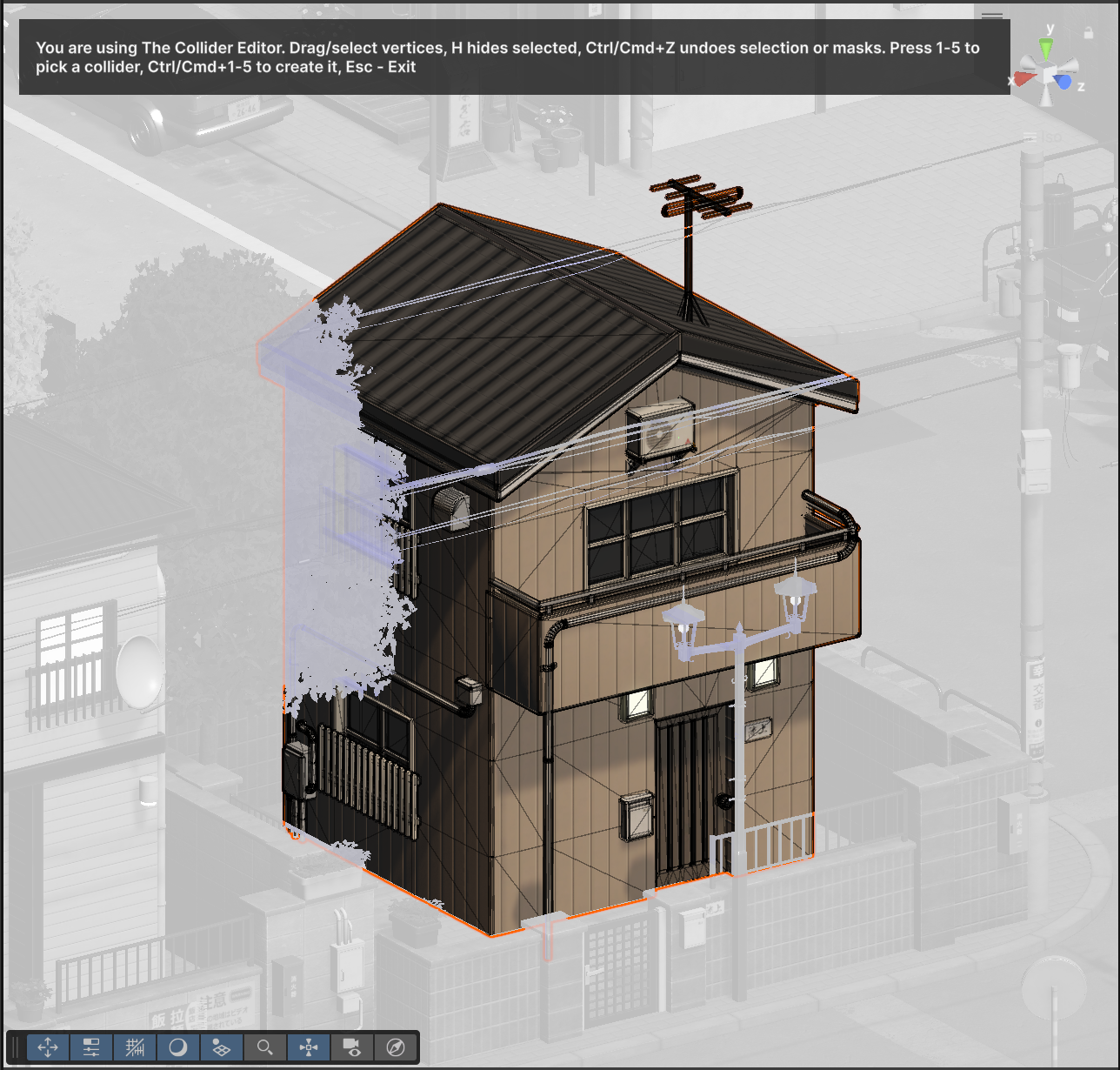
For the editable mesh overlay, I cache the expensive mesh data once, then rebuild only the selection-dependent parts when the selected or hidden vertex sets change. This keeps the Scene view responsive while still showing wireframes, selected faces, selected edges, and vertex points.
private MeshOverlayData CreateMeshOverlayData(Mesh mesh)
{
	MeshOverlayData meshData = new MeshOverlayData();
	meshData.localVertices = mesh.vertices;
	meshData.triangles = mesh.triangles;
	meshData.localNormals = GetSafeMeshNormals(mesh, meshData.localVertices, meshData.triangles);
	meshData.localOverlayDepthBias = CalculateLocalOverlayDepthBias(mesh);
	meshData.edges = CreateUniqueEdges(meshData.triangles, meshData.localVertices.Length);
	return meshData;
}
The selected overlay is rebuilt from the current selected and hidden vertex keys. Hidden vertices are skipped, selected vertices are drawn separately, selected edges are highlighted, and selected faces are batched into one transparent mesh.
for(int vertexIndex = 0; vertexIndex < localVertices.Length; vertexIndex++)
{
	Vector3 localPosition = localVertices[vertexIndex];
	VertexKey vertexKey = new VertexKey(meshTransform, localPosition);

	if(hiddenVertexKeys.Contains(vertexKey))
	{
		continue;
	}

	visibleIndices[vertexIndex] = true;

	bool isSelected = selectedVertexKeys.Contains(vertexKey);
	selectedIndices[vertexIndex] = isSelected;

	Vector3 worldPosition = meshTransform.TransformPoint(localPosition);
	if(isSelected)
	{
		selectedWorldPoints.Add(worldPosition);
	}
	else
	{
		unselectedWorldPoints.Add(worldPosition);
	}
}
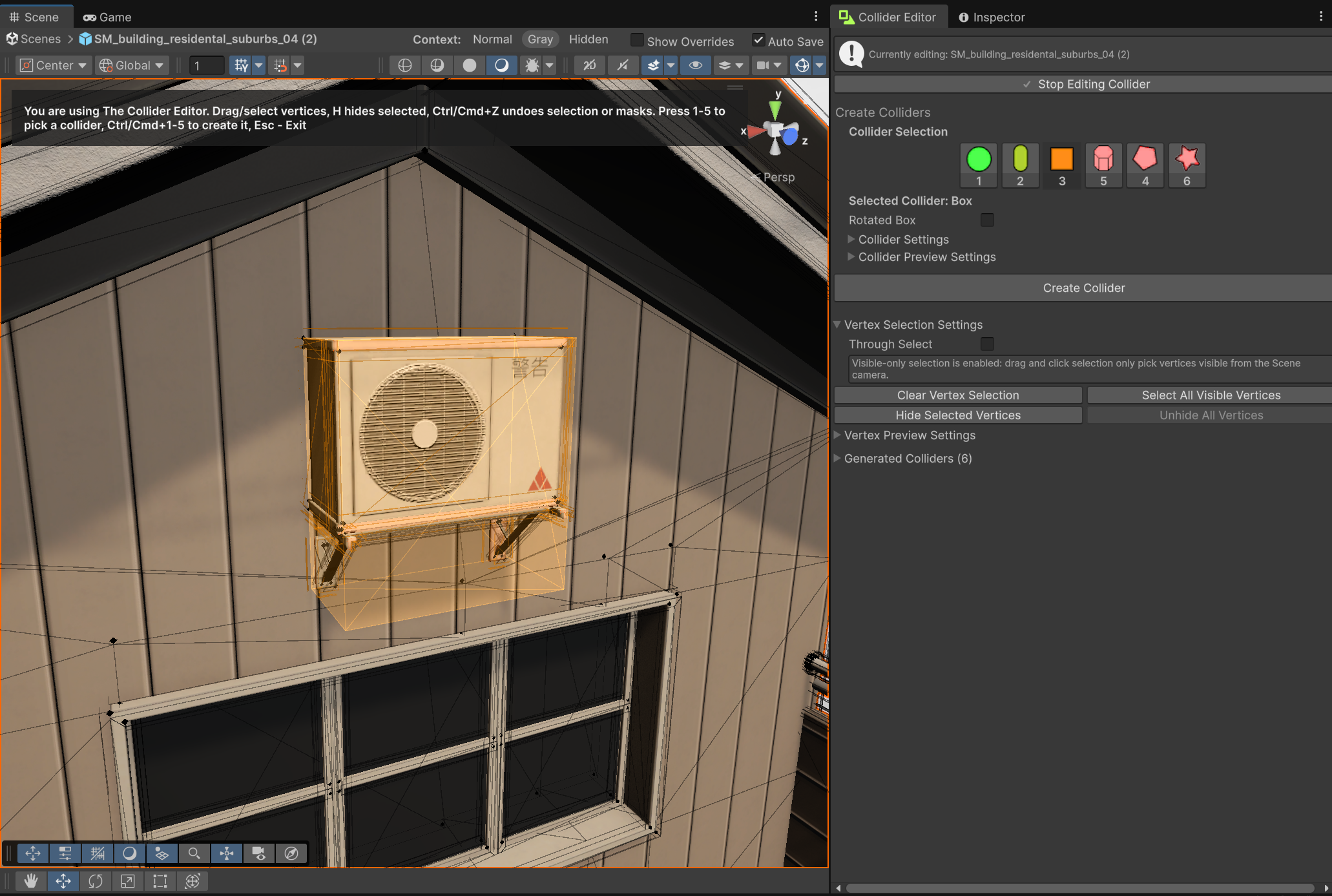
The live collider preview is driven by the selected primitive type. The selected vertices are converted into a point cloud, then each collider type uses its own preview fitting path.
private void DrawPrimitivePreview(ColliderEditorState state)
{
	List<Vector3> worldPoints = ColliderEditorMeshUtility.GetSelectedWorldPoints(state);
	if(worldPoints == null || worldPoints.Count == 0)
	{
		return;
	}

	switch(state.SelectedPrimitiveType)
	{
		case ColliderEditorState.PrimitiveType.Box:
			if(state.RotateBox)
			{
				DrawRotatedBoxPreview(state, worldPoints);
			}
			else
			{
				DrawAxisAlignedBoxPreview(state, worldPoints);
			}
			break;

		case ColliderEditorState.PrimitiveType.Sphere:
			DrawSpherePreview(state, worldPoints);
			break;

		case ColliderEditorState.PrimitiveType.Capsule:
			if(state.RotateCapsule)
			{
				DrawRotatedCapsulePreview(state, worldPoints, (int)state.CapsuleAxis);
			}
			else
			{
				DrawAxisAlignedCapsulePreview(state, worldPoints, (int)state.CapsuleAxis);
			}
			break;

		case ColliderEditorState.PrimitiveType.Cylinder:
			DrawCylinderPreview(state, worldPoints, (int)state.CylinderAxis);
			break;

		case ColliderEditorState.PrimitiveType.ConvexHull:
			DrawConvexHullPreview(state, worldPoints);
			break;
	}
}
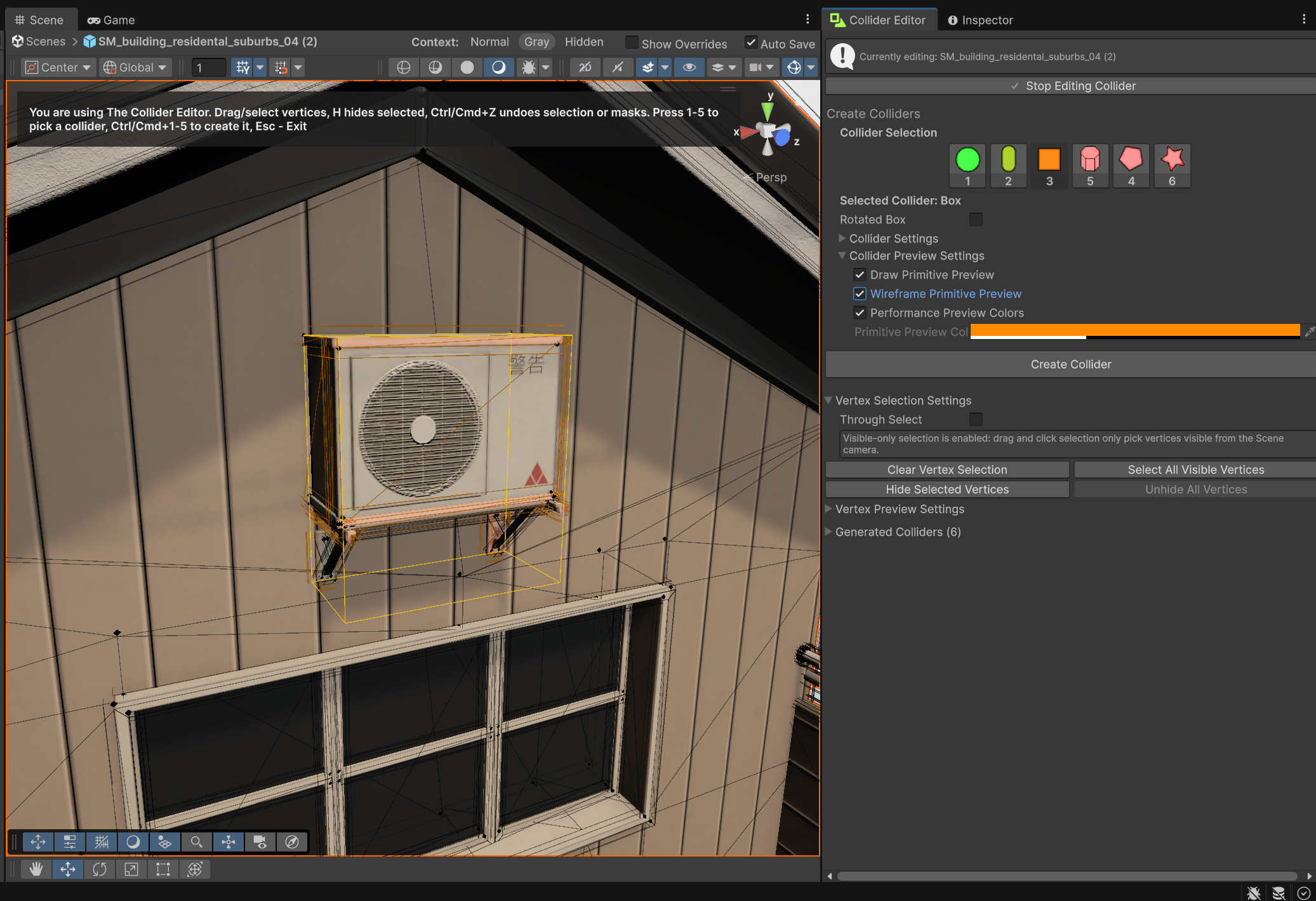
For wireframe mode, primitive previews can be drawn as outlines instead of filled transparent meshes. Box, sphere, and capsule previews use Unity-style handle outlines, while more complex meshes can use the shared mesh preview path.
private void DrawBoxPreviewMesh(ColliderEditorState state, Matrix4x4 matrix)
{
	Color color = GetPrimitivePreviewColor(state);

	if(state.DrawPrimitivePreviewAsWireframe)
	{
		DrawUnityStyleBoxOutline(matrix, color);
		return;
	}

	DrawMeshPreview(GetUnitCubeMesh(), matrix, color);
}
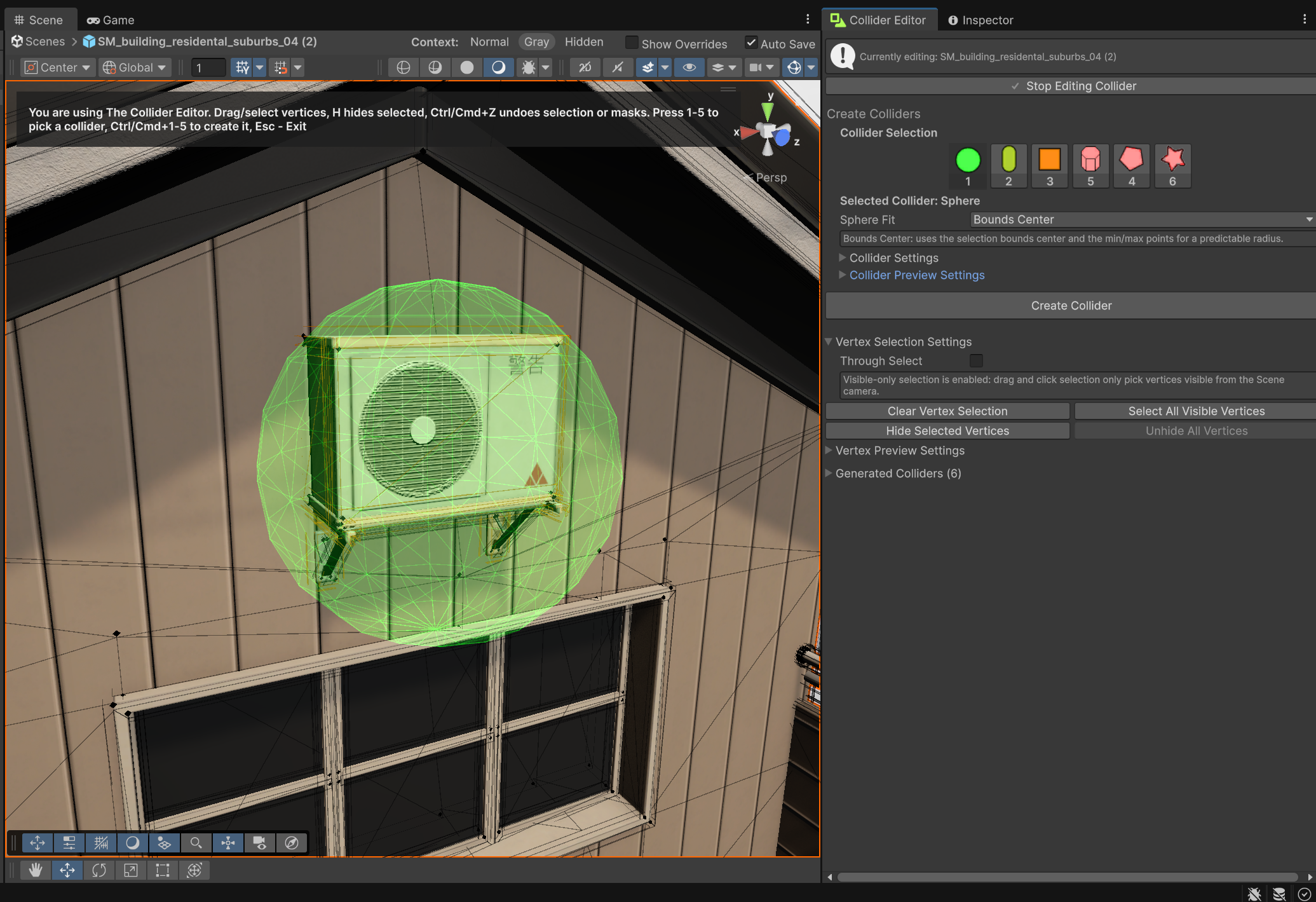
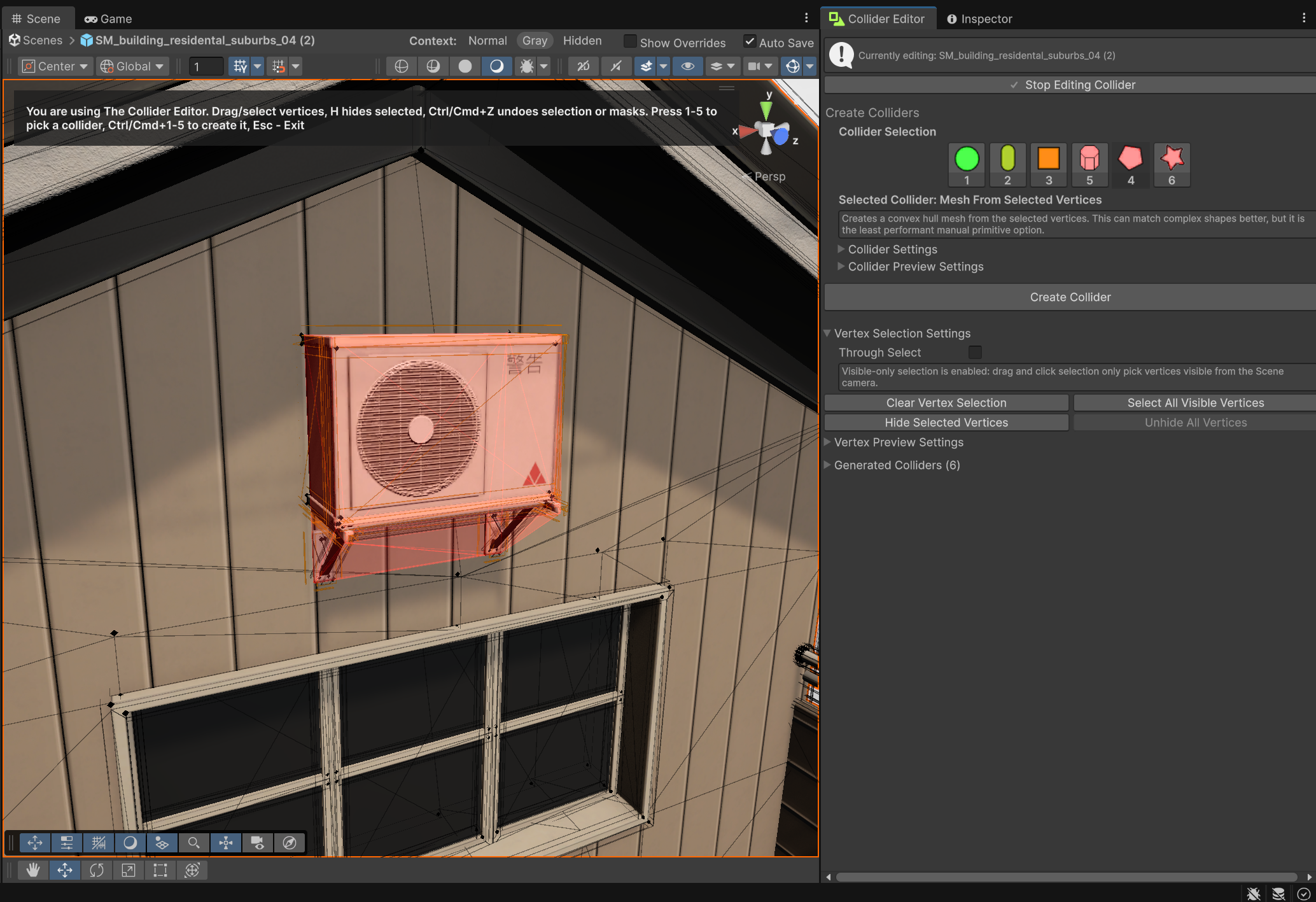
Performance coloring is handled by mapping collider types to color categories. The same language is used for new collider previews and existing collider previews, making it easier to compare generated results.
private Color GetPrimitivePreviewColor(ColliderEditorState state)
{
	if(!state.ColorPrimitivePreviewByPerformance)
	{
		return state.PrimitivePreviewColor;
	}

	switch(state.SelectedPrimitiveType)
	{
		case ColliderEditorState.PrimitiveType.Sphere:
			return FASTEST_PREVIEW_COLOR;

		case ColliderEditorState.PrimitiveType.Capsule:
			return FAST_PREVIEW_COLOR;

		case ColliderEditorState.PrimitiveType.Box:
			return MEDIUM_PREVIEW_COLOR;

		case ColliderEditorState.PrimitiveType.ConvexHull:
		case ColliderEditorState.PrimitiveType.Cylinder:
			return SLOWEST_PREVIEW_COLOR;

		default:
			return state.PrimitivePreviewColor;
	}
}
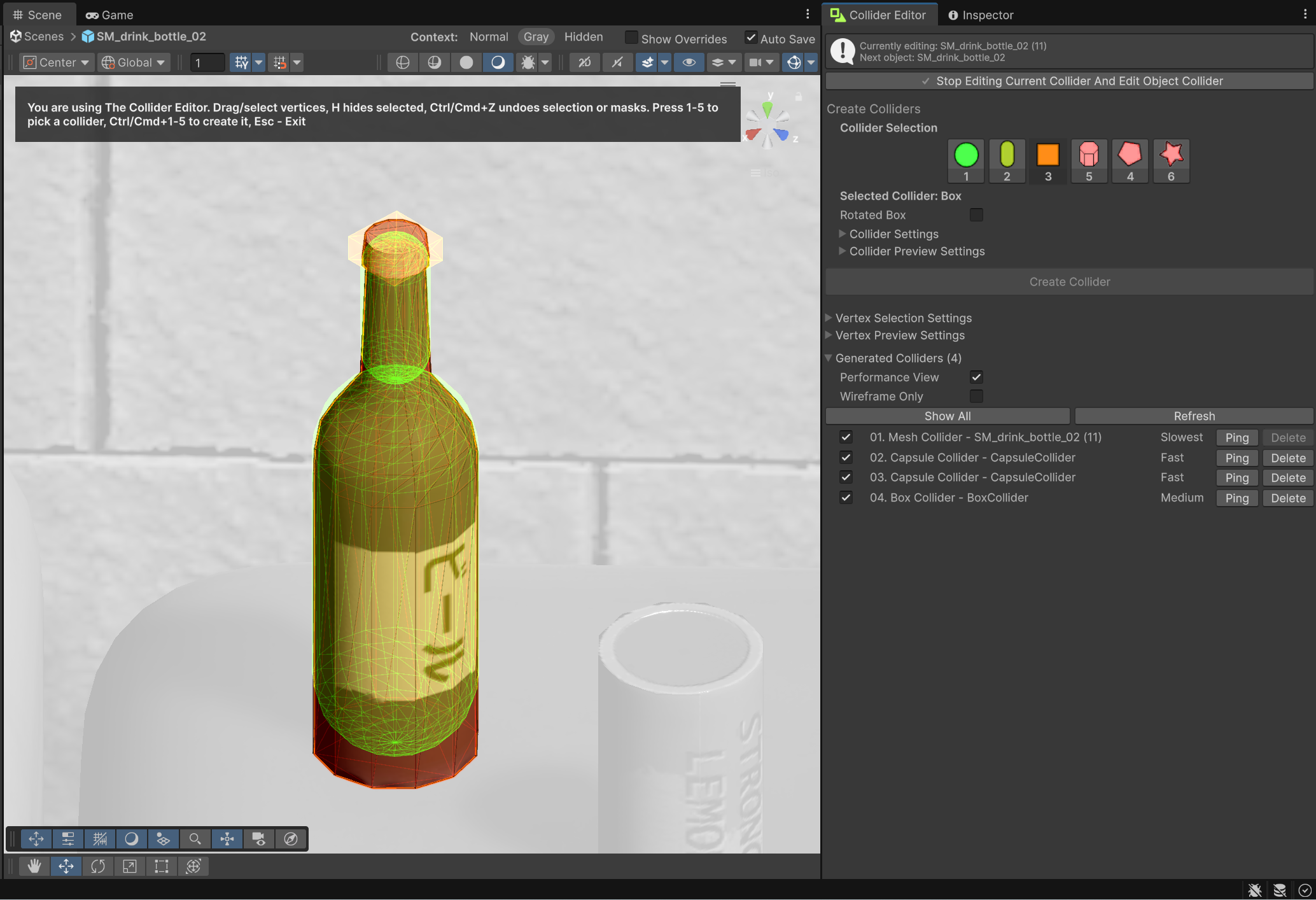
Existing colliders are also drawn in the Scene view. This makes it possible to inspect generated colliders after creation without selecting each collider object manually.
private void DrawExistingColliderPerformanceView(ColliderEditorState state)
{
	Collider[] colliders = state.SelectedObject.GetComponentsInChildren<Collider>(true);

	for(int index = 0; index < colliders.Length; index++)
	{
		DrawExistingColliderPerformancePreview(state, colliders[index]);
	}
}
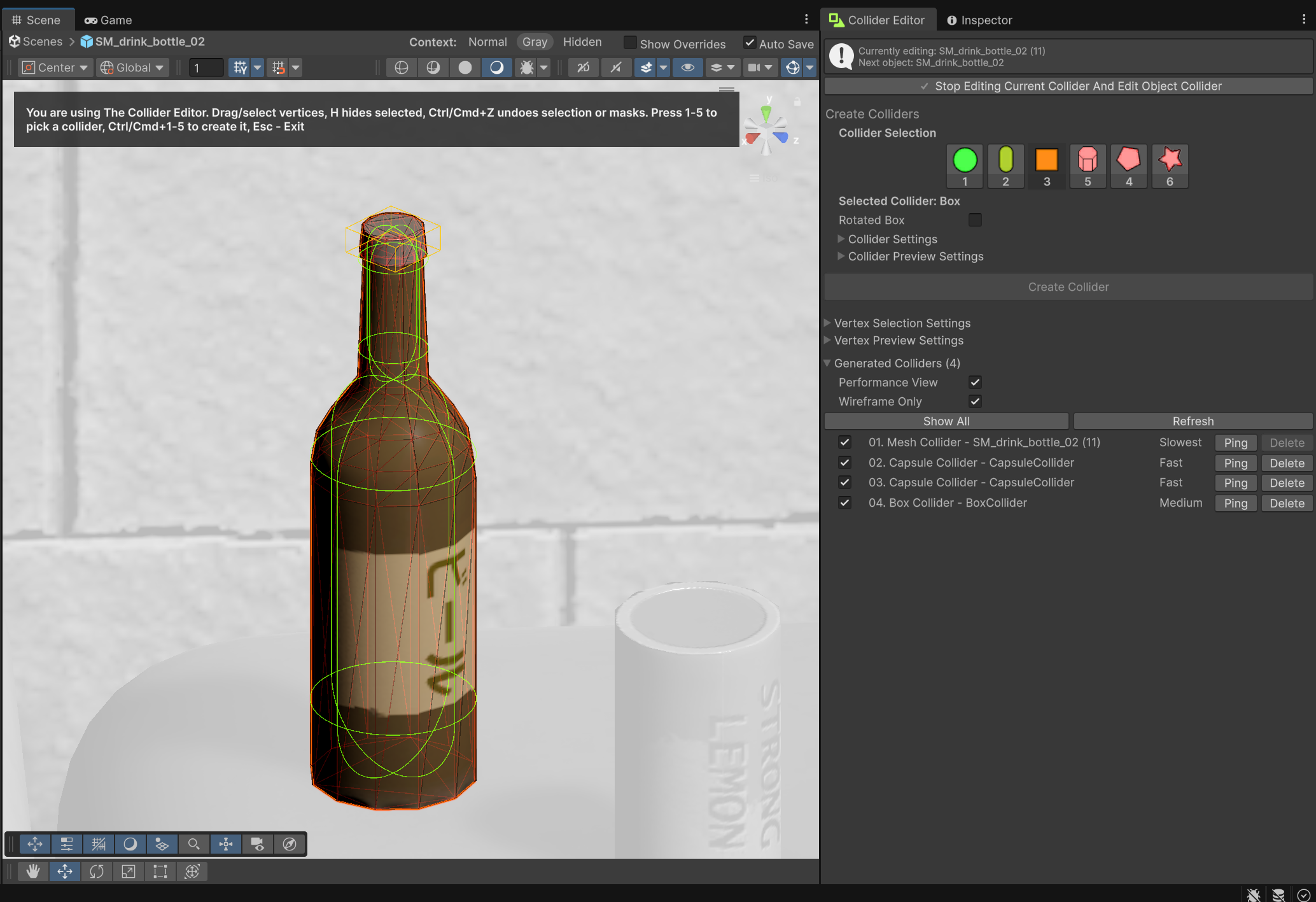
Each existing collider type is recreated visually using the same primitive preview system, with support for wireframe-only mode.
private void DrawExistingColliderPerformancePreview(ColliderEditorState state, Collider collider)
{
	if(collider == null || !collider.enabled || !collider.gameObject.activeInHierarchy)
	{
		return;
	}

	if(!state.IsExistingColliderVisible(collider))
	{
		return;
	}

	Color color = GetPerformanceColorForCollider(collider);

	BoxCollider boxCollider = collider as BoxCollider;
	if(boxCollider != null)
	{
		DrawExistingBoxCollider(boxCollider, color, state.DrawExistingColliderPreviewAsWireframe);
		return;
	}

	SphereCollider sphereCollider = collider as SphereCollider;
	if(sphereCollider != null)
	{
		DrawExistingSphereCollider(sphereCollider, color, state.DrawExistingColliderPreviewAsWireframe);
		return;
	}

	CapsuleCollider capsuleCollider = collider as CapsuleCollider;
	if(capsuleCollider != null)
	{
		DrawExistingCapsuleCollider(capsuleCollider, color, state.DrawExistingColliderPreviewAsWireframe);
		return;
	}

	MeshCollider meshCollider = collider as MeshCollider;
	if(meshCollider != null)
	{
		DrawExistingMeshCollider(meshCollider, color, state.DrawExistingColliderPreviewAsWireframe);
	}
}
✅ Problem Solved
The final preview system gives users immediate visual feedback while authoring colliders. They can see the editable mesh overlay, selected vertices, selected faces, selected edges, and the collider that will be created from the current selection.
It also makes the tool easier to use after collider creation. Existing colliders can be drawn in the Scene view with performance colors and optional wireframe mode, so users can inspect collider coverage and cost without opening each collider manually.
The result is a much more interactive workflow: select vertices, choose a collider type, preview the result live, compare physics cost visually, and then create the collider with confidence.
📉 Cost / Limitations / Tradeoffs
The preview system is optimized, but it is still tied to Scene view repaint. Very dense meshes can still be expensive because the tool may need to cache large edge arrays, selected face meshes, point meshes, and world-space line arrays.
The overlay cache is based on signatures for selected and hidden vertices. This avoids rebuilding every repaint, but it also means the system needs careful invalidation whenever the selected object, child inclusion mode, transform, selected vertices, hidden vertices, or draw sizes change.
The performance colors are helpful, but they are still a simplified heuristic. The code classifies by collider type: sphere is fastest, capsule is fast, box is medium, and mesh/cylinder/convex hull are slowest. Real physics cost can also depend on scale, count, Rigidbody setup, collision layers, mesh complexity, and runtime usage.
public static string GetPerformanceLabelForCollider(Collider collider)
{
	if(collider is SphereCollider)
	{
		return "Fastest";
	}

	if(collider is CapsuleCollider)
	{
		return "Fast";
	}

	if(collider is BoxCollider)
	{
		return "Medium";
	}

	if(collider is MeshCollider)
	{
		return "Slowest";
	}

	return "Unknown";
}
Another limitation is that existing collider preview support is focused on Unity’s common collider types: BoxCollider, SphereCollider, CapsuleCollider, and MeshCollider. Custom collider types or third-party physics shapes would fall back to unknown behavior unless extra preview drawers were added.
Finally, some preview paths are more efficient than others. Primitive preview meshes are cached using a key, but existing capsule collider previews recreate the capsule mesh through GetUnitCapsuleMesh(radius, height). That works visually, but it could be improved by caching capsule meshes per radius/height pair or by drawing capsules fully with Handles in wireframe mode.
🧱 Challenge 4: Create Colliders (Boxes, Spheres, Capsules, Cylinders, Mesh from Selected Vertices, Convex Decomposition with CoACD)
❓ What was the Problem?
The Collider Editor needed to turn a Scene view vertex selection into real Unity colliders. The tool had to support simple primitive colliders such as boxes, spheres, and capsules, but also more flexible shapes like cylinders, convex hull mesh colliders, and convex decomposition.
The main goal was to let the user select part of a model and quickly create the best collider type for that shape without manually adding, positioning, scaling, and tuning Unity collider components.
🧩 Why Was it Hard? What Struggles Did I Face?
The hardest part was that each collider type needed a different creation strategy.
A BoxCollider, SphereCollider, and CapsuleCollider are Unity components with their own center, size, radius, height, and direction properties. A cylinder does not exist as a built-in Unity collider, so it had to be generated as a convex MeshCollider. Mesh-from-selected-vertices also needed a generated convex mesh. Convex decomposition was even more different because it creates multiple convex mesh colliders from one selected region.
That meant the creation pipeline could not be one generic “make collider” function. It needed a dispatcher that routed the current selection to the correct fitting or generation path.
private void CreateSelectedPrimitive()
{
	switch (state.SelectedPrimitiveType)
	{
		case ColliderEditorState.PrimitiveType.Box:
			if(state.RotateBox)
			{
				CreateRotatedBoxCollider();
			}
			else
			{
				CreateBoxCollider();
			}
			return;

		case ColliderEditorState.PrimitiveType.Sphere:
			CreateSphereCollider();
			return;

		case ColliderEditorState.PrimitiveType.Capsule:
			if(state.RotateCapsule)
			{
				CreateRotatedCapsuleCollider();
			}
			else
			{
				CreateCapsuleCollider();
			}
			return;

		case ColliderEditorState.PrimitiveType.Cylinder:
			CreateCylinderCollider();
			return;

		case ColliderEditorState.PrimitiveType.ConvexHull:
			CreateMeshFromSelectedVerticesCollider();
			return;

		case ColliderEditorState.PrimitiveType.ConvexDecomposition:
			CreateCoacdColliders();
			return;
	}
}
Another difficult part was coordinate spaces. The user selects vertices in world space, but generated colliders need to be placed relative to the selected object or to a rotated child object. For example, a normal box collider can be fitted in the selected object’s local space, but a rotated box collider needs a child object aligned to an oriented basis.
private static void AlignChildToWorldPose(
	Transform child,
	Transform root,
	Vector3 worldPosition,
	Quaternion worldRotation)
{
	child.SetParent(root, false);
	child.position = worldPosition;
	child.rotation = worldRotation;
	child.localScale = Vector3.one;
}
Mesh generation added another layer of complexity. A generated MeshCollider needs a mesh asset that survives editor reloads and prefab/scene saves. The code therefore creates persistent generated mesh assets instead of assigning temporary meshes directly.
Mesh persistentMesh = MakeGeneratedMeshPersistent(
	assetOwner,
	mesh,
	resolvedChildName,
	generationAttemptName);

collider.sharedMesh = persistentMesh;
collider.convex = true;
CoACD was the most complex path because it uses a native library, can take time to run, and produces several hull meshes instead of one collider. Unity object creation still has to happen on the main thread, so the heavy decomposition work is run as a background task and the final GameObjects are created afterward.
💡 Solution. How Did I Approach the Problem?
I split collider creation into two layers.
The editor window handles user intent: which collider type is selected, whether the action is confirmed, undo recording, and clearing the selection afterward. The geometry utility handles the actual fitting and mesh generation.
private void ExecuteUndoableCreate(
	GameObject selectedObject,
	string undoName,
	System.Func<Object> createAction)
{
	if(selectedObject == null || createAction == null)
	{
		return;
	}

	Undo.IncrementCurrentGroup();
	Undo.SetCurrentGroupName(undoName);

	int undoGroup = Undo.GetCurrentGroup();

	Undo.RegisterFullObjectHierarchyUndo(selectedObject, undoName);
	Undo.RecordObject(state, undoName);

	Object createdObject = createAction.Invoke();

	if(createdObject != null)
	{
		EditorUtility.SetDirty(state);
		RecordSelectionUndo("Create Collider From Selection");
		state.ClearSelection();

		Selection.activeObject = createdObject;
		EditorGUIUtility.PingObject(createdObject);
	}

	Undo.CollapseUndoOperations(undoGroup);

	SceneView.RepaintAll();
	Repaint();
}
For primitive colliders, I convert the selected vertices into world-space points and then fit the selected collider type to those points.
public static List<Vector3> GetSelectedWorldPoints(ColliderEditorState state)
{
	List<Vector3> points = new List<Vector3>(state.SelectedVertices.Count);
	int count = state.SelectedVertices.Count;

	for (int i = 0; i < count; i++)
	{
		points.Add(state.SelectedVertices[i].WorldPosition);
	}

	return points;
}
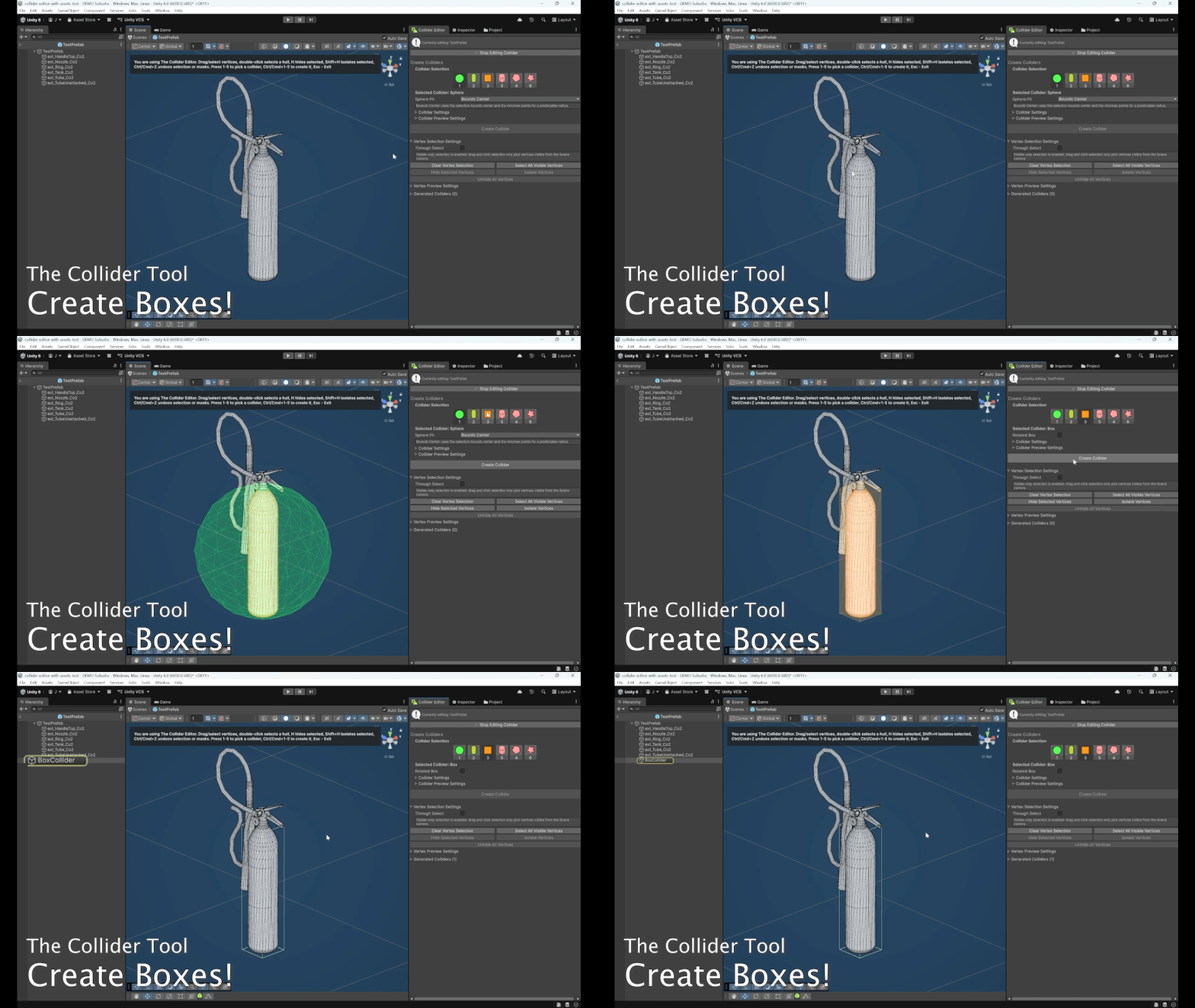
A normal box uses local bounds. A rotated box uses an oriented bounds fit based on the selected points.
public static BoxCollider CreateBoxCollider(
	GameObject root,
	List<Vector3> worldPoints,
	bool isTrigger,
	PhysicsMaterialType material)
{
	if (root == null || worldPoints == null || worldPoints.Count == 0)
	{
		return null;
	}

	GameObject child = CreateColliderChild(root, "BoxCollider");
	BoxCollider collider = child.AddComponent<BoxCollider>();
	ApplySharedSettings(collider, isTrigger, material);

	Bounds bounds = CreateLocalBounds(root.transform, worldPoints);
	collider.center = bounds.center;
	collider.size = MaxVector(bounds.size, Vector3.one * MINIMUM_COLLIDER_VALUE);

	AddGeneratedColliderMarker(child);
	return collider;
}
public static BoxCollider CreateRotatedBoxCollider(
	GameObject root,
	List<Vector3> worldPoints,
	bool isTrigger,
	PhysicsMaterialType material)
{
	if (root == null || worldPoints == null || worldPoints.Count == 0)
	{
		return null;
	}

	OrientedBoundsData orientedBounds = FitOrientedBounds(worldPoints);

	GameObject child = CreateColliderChild(root, "RotatedBoxCollider");
	AlignChildToWorldPose(
		child.transform,
		root.transform,
		orientedBounds.center,
		orientedBounds.rotation);

	BoxCollider collider = child.AddComponent<BoxCollider>();
	ApplySharedSettings(collider, isTrigger, material);
	collider.center = Vector3.zero;
	collider.size = MaxVector(orientedBounds.size, Vector3.one * MINIMUM_COLLIDER_VALUE);

	AddGeneratedColliderMarker(child);
	return collider;
}
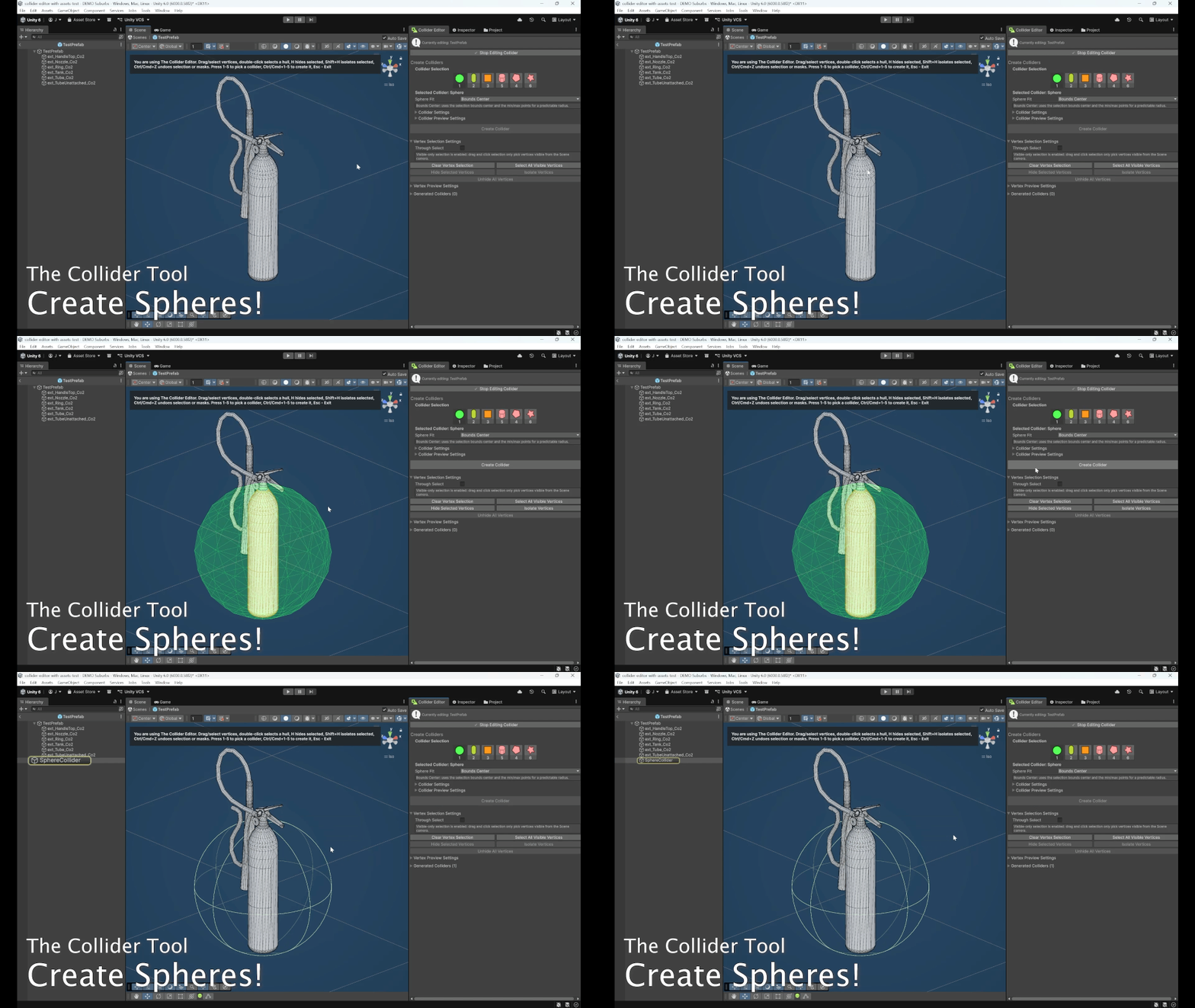
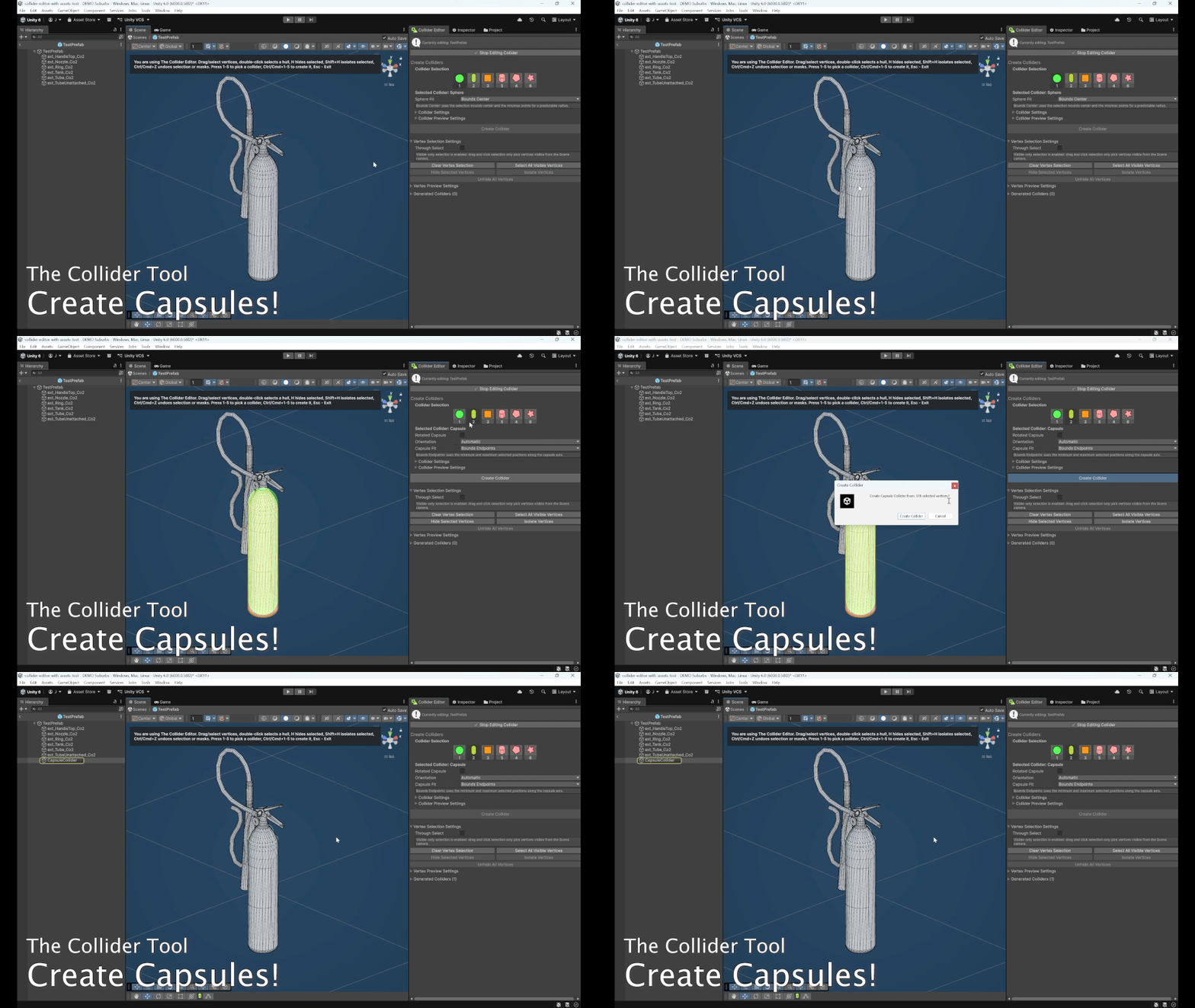
Spheres and capsules use fitting methods. This lets the user choose between faster or more accurate fitting behavior while still creating a normal Unity collider component.
public static SphereCollider CreateSphereCollider(
	GameObject root,
	List<Vector3> worldPoints,
	bool isTrigger,
	PhysicsMaterialType material,
	SPHERE_COLLIDER_METHOD method = SPHERE_COLLIDER_METHOD.MinMax)
{
	if (root == null || worldPoints == null || worldPoints.Count == 0)
	{
		return null;
	}

	List<Vector3> localPoints = ToLocalPoints(root.transform, worldPoints);
	SphereFitData sphereData = CalculateSphereFit(localPoints, method);

	GameObject child = CreateColliderChild(root, "SphereCollider");
	SphereCollider collider = child.AddComponent<SphereCollider>();
	ApplySharedSettings(collider, isTrigger, material);
	collider.center = sphereData.center;
	collider.radius = Mathf.Max(MINIMUM_COLLIDER_VALUE, sphereData.radius);

	AddGeneratedColliderMarker(child);
	return collider;
}
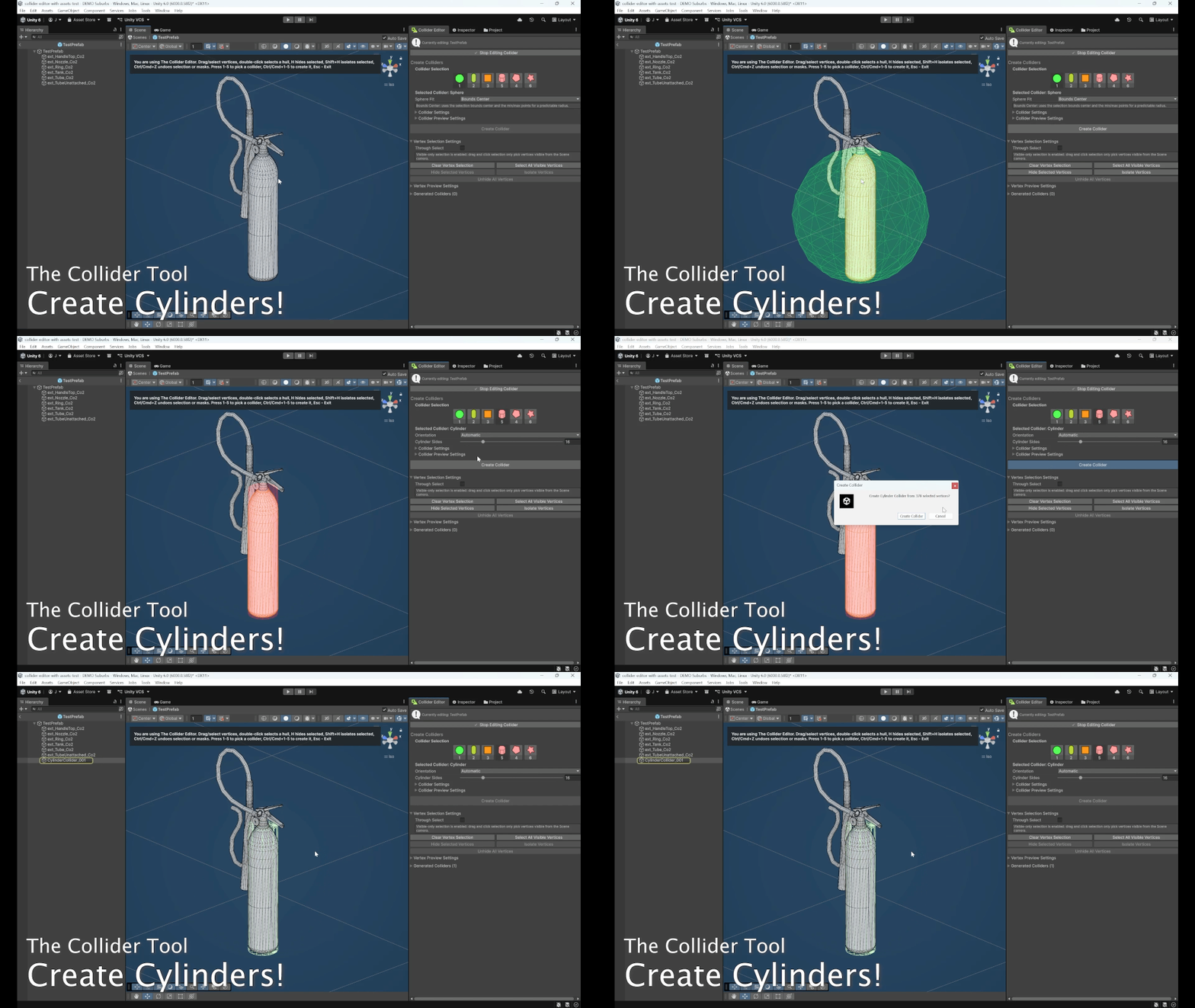
For cylinders, I generated a convex mesh because Unity does not have a built-in CylinderCollider. The tool resolves an axis, calculates the height from the selected bounds, calculates the radius from the furthest radial point, and creates a mesh with a configurable number of sides.
public static MeshCollider CreateCylinderCollider(
	GameObject root,
	List<Vector3> worldPoints,
	bool isTrigger,
	PhysicsMaterialType material,
	int axis = -1,
	int cylinderSides = DEFAULT_CYLINDER_SEGMENTS)
{
	if (root == null || worldPoints == null || worldPoints.Count < 2)
	{
		return null;
	}

	Bounds bounds = CreateLocalBounds(root.transform, worldPoints);
	Vector3 size = bounds.size;
	int resolvedAxis = ResolveAxis(size, axis);
	float height = Mathf.Max(MINIMUM_COLLIDER_VALUE, GetAxisValue(size, resolvedAxis));

	float radius = MINIMUM_COLLIDER_VALUE;
	Vector3 center = bounds.center;

	int count = worldPoints.Count;
	for (int i = 0; i < count; i++)
	{
		Vector3 localPoint = root.transform.InverseTransformPoint(worldPoints[i]) - center;
		Vector2 radialPoint = GetRadialPoint(localPoint, resolvedAxis);
		radius = Mathf.Max(radius, radialPoint.magnitude);
	}

	Mesh cylinderMesh = CreatePreviewCylinderMesh(
		center,
		radius,
		height,
		resolvedAxis,
		cylinderSides);

	return CreateMeshCollider(root, cylinderMesh, "CylinderCollider", isTrigger, material);
}
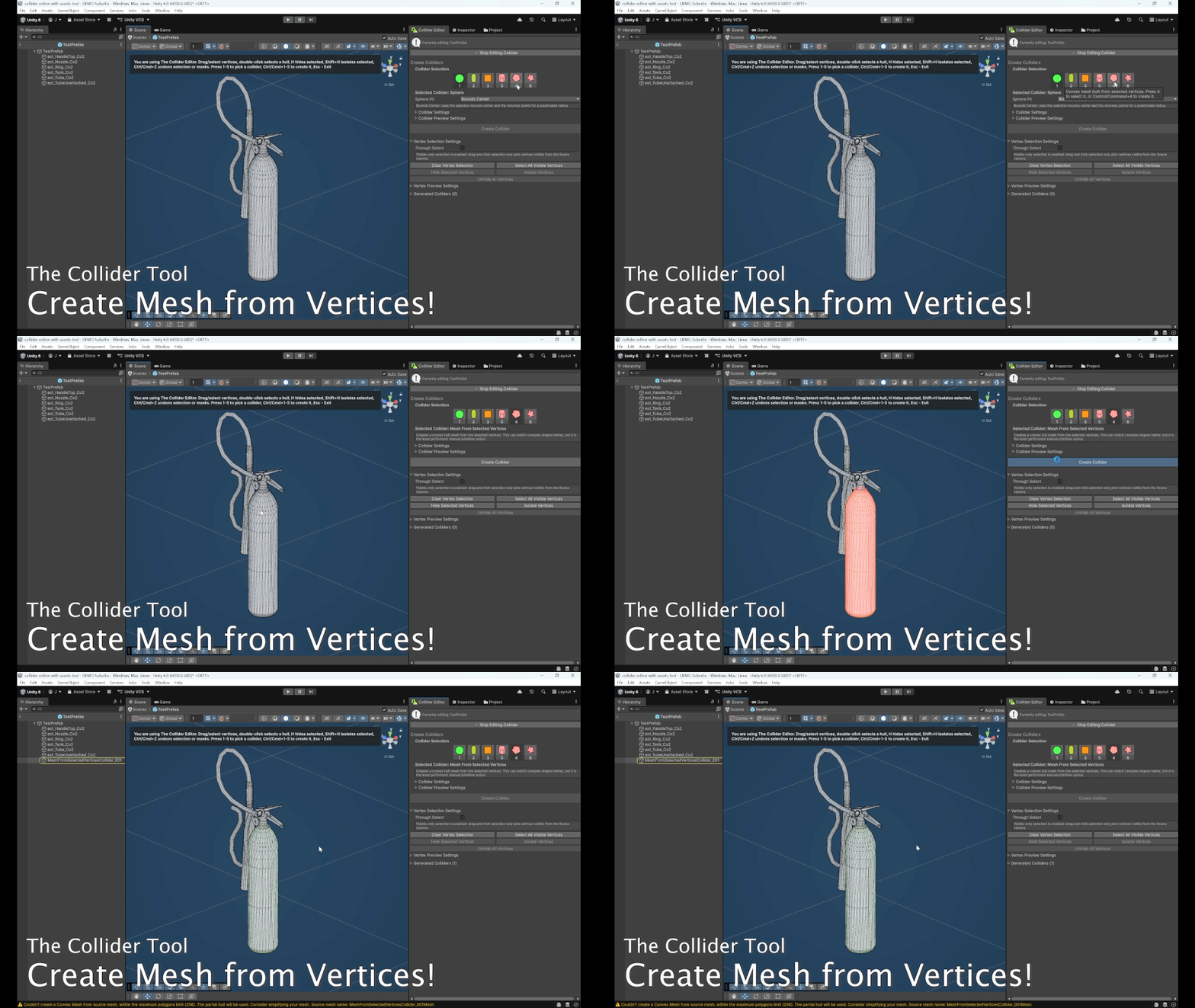
For Mesh from Selected Vertices, I used QuickHull to create a convex mesh from the selected point cloud. This is useful when a box, sphere, capsule, or cylinder is too simple, but the user still wants one convex physics collider.
public static MeshCollider CreateConvexHullCollider(
	GameObject root,
	List<Vector3> worldPoints,
	bool isTrigger,
	PhysicsMaterialType material)
{
	if (root == null || worldPoints == null || worldPoints.Count < 4)
	{
		return null;
	}

	Mesh hull = ColliderQuickHull.CalculateHullWorld(worldPoints, root.transform).result;
	return CreateMeshCollider(
		root,
		hull,
		"MeshFromSelectedVerticesCollider",
		isTrigger,
		material);
}
The QuickHull path converts world-space selected points into the selected object’s local space before generating the final mesh.
public static ColliderQuickHull CalculateHullWorld(
	List<Vector3> points,
	Transform attachTo)
{
	List<Vector3> localPoints = new List<Vector3>();

	foreach (Vector3 point in points)
	{
		localPoints.Add(attachTo.InverseTransformPoint(point));
	}

	ColliderQuickHull qh = new ColliderQuickHull();
	qh.GenerateHull(localPoints);
	return qh;
}
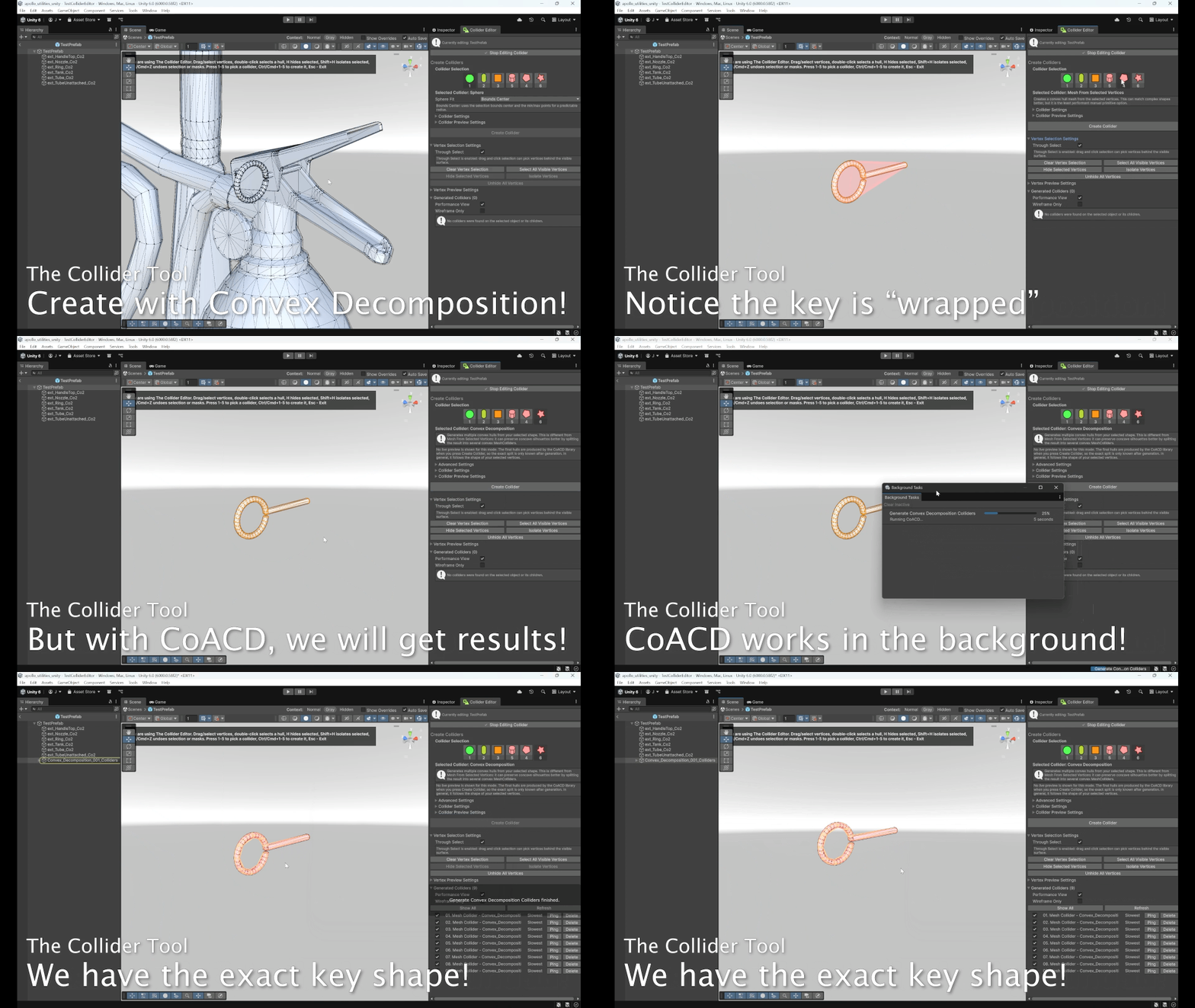
For Convex Decomposition, I used CoACD to split a selected region into multiple convex hulls. Instead of only passing a point cloud, the tool first tries to rebuild the selected source triangles so CoACD receives real mesh topology.
public static Mesh BuildSelectedRegionMesh(ColliderEditorState state)
{
	List<Mesh> selectedRegionMeshes = BuildSelectedRegionMeshes(state);
	if (selectedRegionMeshes.Count == 0)
	{
		return BuildConvexFallbackMesh(state);
	}

	CombineInstance[] combineInstances = new CombineInstance[selectedRegionMeshes.Count];
	for (int i = 0; i < selectedRegionMeshes.Count; i++)
	{
		combineInstances[i].mesh = selectedRegionMeshes[i];
		combineInstances[i].transform = Matrix4x4.identity;
	}

	Mesh outputMesh = new Mesh();
	outputMesh.name = state.SelectedObject.name + "_SelectedRegion";
	outputMesh.CombineMeshes(combineInstances, true, false);
	outputMesh.RecalculateBounds();
	outputMesh.RecalculateNormals();
	return outputMesh;
}
Only fully selected triangles are included in the selected-region mesh. This prevents partially selected triangles from creating unexpected decomposition input.
if (!selectedKeys.Contains(key0) ||
	!selectedKeys.Contains(key1) ||
	!selectedKeys.Contains(key2))
{
	continue;
}

triangles.Add(GetOrAddIndex(index0, sourceVertices, toRoot, vertices, indexMap));
triangles.Add(GetOrAddIndex(index1, sourceVertices, toRoot, vertices, indexMap));
triangles.Add(GetOrAddIndex(index2, sourceVertices, toRoot, vertices, indexMap));
The CoACD integration converts Unity mesh data into native input arrays, runs the native solver, then converts the result back into Unity-compatible mesh data.
fixed (double* vertexPointer = vertices)
fixed (int* trianglePointer = unityTriangles)
{
	MeshInterface meshInterface = new MeshInterface();
	meshInterface.verticesPtr = vertexPointer;
	meshInterface.verticesCount = (ulong)unityVertices.Length;
	meshInterface.trianglesPtr = trianglePointer;
	meshInterface.trianglesCount = (ulong)(unityTriangles.LongLength / 3);

	using MeshArrayInterface meshArray = Run(
		ref meshInterface,
		settings.threshold,
		settings.maxConvexHull,
		settings.preprocessMode,
		settings.preprocessResolution,
		settings.sampleResolution,
		settings.mctsNodes,
		settings.mctsIteration,
		settings.mctsMaxDepth,
		settings.pca,
		settings.merge,
		settings.seed);

	for (ulong meshIndex = 0; meshIndex < meshArray.meshesCount; meshIndex++)
	{
		MeshInterface currentMesh = meshArray.meshesPtr[meshIndex];
		Vector3[] outputVertices = new Vector3[currentMesh.verticesCount];
		int[] outputTriangles = new int[currentMesh.trianglesCount * 3];

		// Copy native output back into managed Unity mesh data.
	}
}
Because CoACD can be slow, I run it as a background task. The generated collider GameObjects are created only after the worker task finishes.
StartBackgroundColliderTask(
	"Generate Convex Decomposition Colliders",
	"Starting convex decomposition...",
	taskState =>
	{
		taskState.CoacdMeshes = ColliderEditorCoacd.Decompose(
			sourceMeshData,
			settings,
			taskState.ReportProgress,
			taskState.CancellationTokenSource.Token);
	},
	taskState =>
	{
		ExecuteUndoableCreate(
			selectedObject,
			"Generate Convex Decomposition Colliders",
			() =>
			{
				string generationAttemptName =
					ColliderEditorGeometry.CreateUniqueGeneratedAttemptName(
						selectedObject,
						"Convex_Decomposition");

				GameObject root = CreateChildRoot(
					selectedObject,
					generationAttemptName);

				for(int index = 0; index < taskState.CoacdMeshes.Count; index++)
				{
					ColliderEditorGeometry.CreateMeshCollider(
						root,
						selectedObject,
						taskState.CoacdMeshes[index].CreateMesh(),
						"Convex_Decomposition_Hull_" + index.ToString("D2"),
						isTrigger,
						physicMaterial,
						generationAttemptName);
				}

				return root;
			});
	});
✅ Problem Solved
The final system lets the user create several collider types from the same vertex-selection workflow.
Simple shapes can become efficient Unity primitives like BoxCollider, SphereCollider, and CapsuleCollider. More complex selected shapes can become convex mesh colliders through QuickHull. Cylinders are supported through generated convex mesh colliders with configurable side counts. Concave-looking regions can be approximated with multiple convex MeshCollider hulls using CoACD.
The workflow also respects shared collider settings such as trigger mode and physics material, supports Undo, creates generated colliders as child objects, saves generated meshes as assets, and clears the selection after successful creation so the result feels like a completed editor action.
📉 Cost / Limitations / Tradeoffs
Primitive fitting is approximate. Axis-aligned boxes are fast and predictable, but they may waste space around rotated geometry. Rotated boxes use an oriented fit based on the selected point distribution, but this is not a guaranteed minimum-volume bounding box.
Spheres and capsules also depend on the selected fitting method. The sphere distance method can become expensive because it compares pairs of points, so the code includes a time cutoff and falls back to a faster approximation when needed.
const double MAX_TIME = 0.1;

for (int i = 0; i < localPoints.Count; i++)
{
	for (int j = i + 1; j < localPoints.Count; j++)
	{
		float distance = Vector3.Distance(localPoints[i], localPoints[j]);
		if (distance > maxDistance)
		{
			maxDistance = distance;
			distanceVertexA = localPoints[i];
			distanceVertexB = localPoints[j];
		}
	}

	if (UnityEditor.EditorApplication.timeSinceStartup - startTime > MAX_TIME)
	{
		switchToFasterAlgorithm = true;
		break;
	}
}
The cylinder collider is not a true primitive collider. It is a convex MeshCollider, so it is heavier than a box, sphere, or capsule. Increasing the side count makes the shape look rounder, but it also increases mesh complexity. The state clamps the side count between 3 and 64.
public int CylinderSides
{
	get { return cylinderSides; }
	set { cylinderSides = Mathf.Clamp(value, 3, 64); }
}
The QuickHull mesh-from-selected-vertices mode requires at least four points and a valid 3D point cloud. If the selected points are coplanar or degenerate, the hull may fail to generate a useful mesh.
if (furthestPlanePoint == -1)
{
	return false;
}
CoACD gives better results for concave shapes, but it has important tradeoffs. It does not have a live preview in the current UI, so the exact split is only visible after generation. It also depends on the native lib_coacd plugin, uses unsafe pointer marshalling, and has more settings for artists to tune.
Cancellation is supported around the task, but once the native CoACD_run call has started, the code cannot interrupt the native solver until it returns.
progressCallback?.Invoke(0.25f, "Running CoACD...");
cancellationToken.ThrowIfCancellationRequested();

using MeshArrayInterface meshArray = Run(
	ref meshInterface,
	settings.threshold,
	settings.maxConvexHull,
	settings.preprocessMode,
	settings.preprocessResolution,
	settings.sampleResolution,
	settings.mctsNodes,
	settings.mctsIteration,
	settings.mctsMaxDepth,
	settings.pca,
	settings.merge,
	settings.seed);
The selected-region mesh for CoACD only includes fully selected source triangles. This keeps the input clean, but it means partial selections may produce no region mesh and fall back to a convex hull instead. That fallback is safe, but it loses the original concave topology that CoACD would normally use.
Finally, generated mesh colliders create persistent mesh assets on disk. This is necessary so the colliders survive reloads and can be inspected or cleaned up, but it also adds asset-management complexity compared with simple primitive colliders.
🧰 Challenge 5: Other Features (Undo Support, Persistent Generated Mesh Assets & Cleanup, Keyboard Shortcuts, Background Collider Generation)
❓ What was the Problem?
The Collider Editor was not only about selecting vertices and creating colliders. It also needed to behave like a proper Unity editor tool.
That meant actions had to be undoable, generated mesh colliders had to survive scene reloads, unused generated mesh assets needed to be cleaned up safely, keyboard shortcuts had to make the workflow faster, and expensive operations like convex decomposition could not freeze the editor window.
Without these supporting systems, the main collider workflow would work technically, but it would feel unsafe and unfinished for real production use.
🧩 Why Was it Hard? What Struggles Did I Face?
The hardest part was that the tool works across several different kinds of data at once.
Selection and masking live inside the editor window state. Collider GameObjects live in the scene hierarchy. Generated mesh collider meshes live as Unity assets on disk. Prefab editing has its own isolated prefab stage. CoACD runs native-heavy mesh processing that can take time and cannot safely create Unity objects from a background thread.
That meant a simple “do the thing, then undo it” approach was not enough. For example, selection changes need Undo.RecordObject on the editor state, but collider creation needs Undo records for scene objects and the selected hierarchy.
private void RecordSelectionUndo(string undoName)
{
	if(state == null)
	{
		return;
	}

	Undo.RecordObject(state, undoName);
	EditorUtility.SetDirty(state);
}
Generated mesh cleanup was also tricky because deleting a collider is not the same as deleting its generated mesh asset. The mesh asset should only be removed when no other generated collider still uses it.
private static void DeleteGeneratedMeshAssetIfUnused(
	string assetPath,
	GameObject ignoredObject)
{
	if(!CanDeleteGeneratedMeshAsset(assetPath))
	{
		return;
	}

	Mesh generatedMesh =
		AssetDatabase.LoadAssetAtPath<Mesh>(assetPath);

	if(generatedMesh != null &&
		IsMeshUsedByAnotherLoadedObject(
			ignoredObject,
			generatedMesh))
	{
		return;
	}

	if(!AssetDatabase.DeleteAsset(assetPath))
	{
		return;
	}

	DeleteEmptyGeneratedMeshFolders(assetPath);
	AssetDatabase.SaveAssets();
}
Background generation had a different problem: Unity objects must still be created on the main thread. The expensive CoACD work can run in a task, but creating collider GameObjects, registering Undo, assigning meshes, repainting the editor, and showing notifications all need to happen back in Unity’s editor loop.
💡 Solution. How Did I Approach the Problem?
I added Undo support around both editor-state changes and actual scene-object creation.
For selection, hiding, isolation, and finishing editing, I record the ColliderEditorState before changing it. For collider creation, I create a grouped Undo operation that records the selected hierarchy, records the state, runs the creation callback, clears the selection, selects the created collider, and collapses the operation into one clean Undo step.
private void ExecuteUndoableCreate(
	GameObject selectedObject,
	string undoName,
	System.Func<Object> createAction)
{
	if(selectedObject == null || createAction == null)
	{
		return;
	}

	Undo.IncrementCurrentGroup();
	Undo.SetCurrentGroupName(undoName);

	int undoGroup = Undo.GetCurrentGroup();

	Undo.RegisterFullObjectHierarchyUndo(selectedObject, undoName);
	Undo.RecordObject(state, undoName);

	Object createdObject = createAction.Invoke();

	if(createdObject != null)
	{
		EditorUtility.SetDirty(state);

		RecordSelectionUndo("Create Collider From Selection");
		state.ClearSelection();

		Selection.activeObject = createdObject;
		EditorGUIUtility.PingObject(createdObject);
	}

	Undo.CollapseUndoOperations(undoGroup);

	SceneView.RepaintAll();
	Repaint();
}
Generated collider objects are also registered with Unity Undo as they are created.
private static GameObject CreateColliderChild(GameObject root, string childName)
{
	GameObject child = new GameObject(childName);

#if UNITY_EDITOR
	UnityEditor.Undo.RegisterCreatedObjectUndo(child, "Create Collider Child");
#endif

	child.transform.SetParent(root.transform, false);
	return child;
}
For generated mesh assets, I made MeshCollider meshes persistent. Instead of assigning only runtime-created meshes, the tool saves generated meshes as .asset files in organized folders. The folder location depends on whether the user is editing a prefab, a saved scene, or an unsaved scene.
private static Mesh MakeGeneratedMeshPersistent(
	GameObject assetOwner,
	Mesh mesh,
	string meshName,
	string generationAttemptName)
{
#if UNITY_EDITOR
	if(assetOwner == null || mesh == null || EditorUtility.IsPersistent(mesh))
	{
		return mesh;
	}

	bool useAttemptFolder = !string.IsNullOrEmpty(generationAttemptName);
	string folderPath = GetGeneratedMeshFolderPath(assetOwner, useAttemptFolder);

	if(string.IsNullOrEmpty(folderPath))
	{
		return mesh;
	}

	if(useAttemptFolder)
	{
		folderPath += "/" + CreateSafeAssetName(
			generationAttemptName,
			"GeneratedAttempt");
	}

	EnsureAssetFolderExists(folderPath);

	string safeMeshName = CreateSafeAssetName(
		meshName,
		"GeneratedMeshCollider") + "Mesh";

	string assetPath = AssetDatabase.GenerateUniqueAssetPath(
		folderPath + "/" + safeMeshName + ".asset");

	mesh.name = Path.GetFileNameWithoutExtension(assetPath);

	AssetDatabase.CreateAsset(mesh, assetPath);
	EditorUtility.SetDirty(mesh);
	AssetDatabase.SaveAssets();
#endif

	return mesh;
}
To make cleanup safer, generated colliders get a marker component. This identifies which colliders were created by the tool and stores the generated mesh reference.
[AddComponentMenu("")]
[DisallowMultipleComponent]
public sealed class ColliderEditorGeneratedCollider : MonoBehaviour
{
	[SerializeField]
	private Mesh mesh;

	public Mesh Mesh
	{
		get { return mesh; }
	}

	public void SetMesh(Mesh generatedMesh)
	{
		mesh = generatedMesh;
	}
}
Then the editor only enables deletion for generated colliders, not arbitrary colliders the user may have created manually.
private bool CanDeleteGeneratedCollider(Collider collider)
{
	if(collider == null || state.SelectedObject == null)
	{
		return false;
	}

	return collider.GetComponent<ColliderEditorGeneratedCollider>() != null;
}
The cleanup watcher handles cases where generated collider hierarchies are deleted outside the tool. It listens to Unity object-change events, caches generated mesh asset paths by hierarchy instance ID, and schedules cleanup after Unity has finished processing the change.
static ColliderEditorGeneratedMeshCleanupWatcher()
{
	ObjectChangeEvents.changesPublished +=
		OnObjectChangesPublished;

	PrefabStage.prefabStageOpened +=
		OnPrefabStageOpened;

	PrefabStage.prefabSaved +=
		OnPrefabSaved;

	PrefabStage.prefabStageClosing +=
		OnPrefabStageClosing;

	ScheduleCacheRebuild();
}
private static void DeletePendingMeshAssets()
{
	cleanupScheduled = false;

	List<string> assetPaths =
		new List<string>(PENDING_MESH_ASSET_PATHS);

	PENDING_MESH_ASSET_PATHS.Clear();

	int pathCount = assetPaths.Count;

	for(int index = 0; index < pathCount; index++)
	{
		ColliderEditorGeometry
			.DeleteGeneratedMeshAssetIfUnused(
				assetPaths[index]);
	}
}
For keyboard shortcuts, I routed Scene view key input into the editor workflow. Escape exits editing, Ctrl/Cmd+Z performs Undo, Ctrl/Cmd+A selects all vertices, H hides selected vertices, Shift+H isolates them, Ctrl/Cmd+Enter creates the selected collider, and number keys switch collider type.
if(e.control || e.command)
{
	if(e.keyCode == KeyCode.Z)
	{
		Undo.PerformUndo();
		e.Use();
		return true;
	}

	if(e.keyCode == KeyCode.Return || e.keyCode == KeyCode.KeypadEnter)
	{
		if(state.SelectedPrimitiveType != ColliderEditorState.PrimitiveType.None &&
			state.SelectedVertices.Count > 0)
		{
			ConfirmAndCreateSelectedPrimitive();
		}

		e.Use();
		return true;
	}
}

if(e.keyCode == KeyCode.H)
{
	if(state.SelectedVertices.Count > 0)
	{
		if(e.shift)
		{
			IsolateSelectedVertices();
		}
		else
		{
			HideSelectedVertices();
		}
	}

	e.Use();
	return true;
}
For heavy convex decomposition, I added a small background task system. The worker thread runs the expensive mesh-processing step, reports progress, and stores the result. The editor update loop then finishes the task, handles failure/cancellation, and creates Unity objects on the main thread.
private void StartBackgroundColliderTask(
	string title,
	string initialDescription,
	Action<BackgroundColliderTaskState> workerAction,
	Action<BackgroundColliderTaskState> completeOnMainThread)
{
	if (backgroundColliderTaskState != null)
	{
		return;
	}

	BackgroundColliderTaskState taskState = new BackgroundColliderTaskState();
	taskState.title = title;
	taskState.description = initialDescription;
	taskState.progressValue = 0.0f;
	taskState.completeOnMainThread = completeOnMainThread;
	taskState.CancellationTokenSource = new CancellationTokenSource();
	taskState.progressId = Progress.Start(title, initialDescription, Progress.Options.Sticky);

	backgroundColliderTaskState = taskState;
	EditorApplication.update += UpdateBackgroundColliderTask;

	taskState.workerTask = Task.Run(() =>
	{
		try
		{
			workerAction.Invoke(taskState);
		}
		catch (OperationCanceledException)
		{
			taskState.description = "Canceled.";
		}
		catch (Exception exception)
		{
			taskState.exception = exception;
			taskState.description = "Failed.";
		}
		finally
		{
			taskState.isCompleted = true;
		}
	}, taskState.CancellationTokenSource.Token);
}
backgroundColliderTaskState.completeOnMainThread?.Invoke(backgroundColliderTaskState);
Progress.Finish(backgroundColliderTaskState.progressId, Progress.Status.Succeeded);
ShowNotification(new GUIContent(backgroundColliderTaskState.title + " finished."));
✅ Problem Solved
The tool became much safer and more production-friendly.
Users can undo selection changes, masking actions, collider creation, and generated collider deletion. Generated mesh colliders are saved as real Unity assets instead of temporary runtime meshes, so they survive editor reloads and scene/prefab saves. Generated mesh assets are cleaned up when they are no longer used, reducing asset-folder clutter.
Keyboard shortcuts make the main workflow faster, especially when repeatedly selecting vertices, hiding noisy areas, switching collider types, and creating colliders. Heavy CoACD convex decomposition no longer blocks the editor window in the same way because the expensive part runs in the background with Unity progress feedback.
📉 Cost / Limitations / Tradeoffs
The biggest tradeoff is that Undo and asset deletion are not the same system. Scene objects are handled through Unity Undo, but generated mesh assets are deleted through AssetDatabase.DeleteAsset. That means deleting a generated collider can remove the mesh asset outside the normal scene-object Undo flow. This keeps the project clean, but it is more complex and less perfectly reversible than a pure scene-only operation.
The cleanup system is intentionally conservative. It only deletes assets that live inside known generated-mesh folders.
private static bool CanDeleteGeneratedMeshAsset(string assetPath)
{
	if(string.IsNullOrEmpty(assetPath))
	{
		return false;
	}

	string normalizedPath = assetPath.Replace("\\", "/");

	if(normalizedPath.StartsWith(
		GENERATED_MESH_ROOT_FOLDER + "/",
		StringComparison.Ordinal))
	{
		return true;
	}

	string[] pathParts = normalizedPath.Split('/');
	int partCount = pathParts.Length;

	for(int index = 0; index < partCount; index++)
	{
		if(pathParts[index].EndsWith(
			GENERATED_MESH_FOLDER_NAME,
			StringComparison.Ordinal))
		{
			return true;
		}
	}

	return false;
}
That is safer because it avoids deleting user-authored mesh assets, but it also means misplaced generated assets or manually moved assets may not be cleaned up automatically.
The cleanup watcher depends on Unity editor events, delayed calls, prefab-stage events, and cached instance IDs. This handles many common workflows, but it is still editor-state dependent. If assets are modified externally, moved manually, or referenced by unloaded scenes/prefabs, the cleanup logic may not have full visibility.
Background generation supports cancellation, but cancellation is cooperative. The code can cancel before or between managed steps, but once a heavy native CoACD call is running, the task may not stop immediately until that call returns.
The background task system also allows only one collider-generation task at a time.
if (backgroundColliderTaskState != null)
{
	return;
}
That prevents multiple heavy CoACD jobs from fighting over editor state, but it also means users cannot queue several decompositions at once.
The keyboard shortcut system is useful but not complete. It explicitly handles Undo, but not Redo. It also maps number keys only from 1 to 5, even though the primitive order contains six collider types, including Convex Decomposition.
case KeyCode.Alpha5:
case KeyCode.Keypad5:
	shortcutIndex = 4;
	break;
So CoACD still needs to be selected through the UI rather than a number shortcut unless another shortcut is added.
💥 Impact of Contribution
Before this contribution, creating colliders at Flashgroup was mostly a manual and repetitive process. Artists and developers had to add Unity collider components by hand, manually position and scale them, and judge through trial-and-error whether a primitive collider, convex mesh, or multiple hulls would produce the best result. This became especially difficult on complex objects, where selecting the right part of a mesh or dealing with disconnected mesh islands could quickly become tedious.
After developing the Collider Editor, collider authoring became a much more visual and streamlined Scene view workflow. Users can now select vertices directly on the mesh, preview the collider before committing to it, and generate boxes, spheres, capsules, cylinders, convex hulls, or CoACD-based convex decompositions from the same selection system. Existing colliders can also be inspected more easily through performance-colored previews, making collider cost visible directly in the editor.
This reduced a significant amount of trial-and-error. Artists and developers can now create more accurate colliders faster, isolate or hide noisy mesh regions, inspect collider complexity at a glance, and safely undo most editing actions. More advanced setups, such as decomposing only a selected concave region into multiple convex hulls, also became possible without leaving Unity or relying on external manual setup.
Overall, the tool improved both productivity and usability. Instead of forcing users to choose between fully manual collider creation or unpredictable automatic generation, the Collider Editor gave them a flexible workflow where they could visually control the result, use automation when helpful, and fall back to manual precision when needed.
📚 What I Learned
I learned that a tool is only “fast” if it is fast in the user’s real workflow, not just in the algorithm.
My first instinct was to improve automatic generation, but testing showed that artists could often make good colliders manually in 1–2 minutes. That changed my thinking from “how do I automate everything?” to “how do I reduce the number of decisions and actions the user has to take?”
I also learned to design editor tools around feedback loops. Immediate visual previews, clear selection, and undo support mattered more than exposing every technical parameter. A powerful system can still feel unusable if the user cannot quickly see what changed or why.
Next time, I would test the workflow with artists earlier, before building too much around my own assumptions. I would start with the smallest usable editor flow first, then add automation only where it clearly saves time.
🔄 Future Improvements
I would add a stronger selection acceleration system, such as spatial partitioning or cached screen-space lookup, so dense meshes can be selected faster without iterating over every vertex each time.
I would improve preview cache invalidation by centralizing the rules for when mesh overlays, selected faces, hidden meshes, and collider previews need to rebuild. This would make the system easier to maintain and reduce the chance of stale preview data.
I would add a live CoACD preview or at least a low-resolution preview mode, so users can understand the convex decomposition result before committing to generation.
I would improve generated mesh asset management by making cleanup more transparent, with a small audit or repair tool that shows which generated meshes are used, unused, or missing.
I would also expand the shortcut system with Redo support, configurable key bindings, and direct shortcuts for every collider type, including Convex Decomposition.
Architecturally, I would separate the tool further into clear services: selection, preview, collider generation, asset persistence, and cleanup. That would make future features easier to add without increasing coupling inside the editor window.
👤 Zhangir After the Project
By the end of the project, I achieved the original goal, but not in the way I first expected. I started by trying to create an automatic collider generation tool, but through testing and feedback, I realized the real need was a fast, visual, and flexible collider editor.
What I am most proud of is that I did not stay attached to my first solution. When I saw that artists could often create colliders manually faster than my automatic generator could reliably produce them, I changed direction. I turned the project into a tool that supports manual collider creation, visual mesh selection, previews, and automatic generation when it is actually useful.
I grew as an engineer by learning to think beyond the code. A good tool is not just about the algorithm behind it; it is about how quickly users understand it, trust it, and fit it into their existing workflow. I became better at observing users, separating what they say from what they actually need, and making design decisions based on real usage instead of assumptions.
This project shows that I work iteratively and practically. I can research complex technical solutions, implement them, test them with real users, and change direction when the evidence shows a better path.